ERR_CONNECTION_REFUSED or Timed Out: Website Down Only for You?
The site loads on mobile data but not on your Wi-Fi, or fails only in your office. Prove it is up, then check for a firewall block on your IP, stale DNS, IPv6 and local filters.
You type your own website address and the browser gives up. Chrome and Edge show This site can’t be reached with one of these lines underneath: example.com refused to connect. (ERR_CONNECTION_REFUSED), example.com took too long to respond. (ERR_CONNECTION_TIMED_OUT) or The connection was reset. (ERR_CONNECTION_RESET). Firefox says Unable to connect or The connection has timed out, and Safari says it can’t connect to the server.
Then the strange part: the site loads fine on your phone once you switch off Wi-Fi, a friend in another town says it works, and your uptime monitor is green. When a site is down only for you, or only for one office, the cause is very often not the website at all. Something between your network and the server is refusing you, and the most common culprit is the server’s own firewall, which has blocked your public IP address. This guide shows you how to prove which it is in a few minutes and what to do about each cause. It is for site owners, office managers and the designers who get the “the site is down!” call.
What is happening
Before a browser can ask for a page, it has to look up the domain’s IP address in DNS, then open a connection to that address on port 443 (HTTPS) or 80 (HTTP). These three errors all mean the second part failed: the lookup worked, but the connection did not. The exact error is a useful clue.
Error
What the network did
Usual causes
ERR_CONNECTION_REFUSED
Something at that address answered straight away and said no
Web server stopped, DNS pointing at a machine that has no website (an old server), a firewall set to reject, or a local proxy or security tool on your computer
ERR_CONNECTION_TIMED_OUT
Nothing answered at all
A firewall silently dropping your traffic (the classic sign of your IP being blocked), the server switched off, or a routing problem
ERR_CONNECTION_RESET or ERR_CONNECTION_CLOSED
A connection started, then something cut it
A firewall or filter in the middle (office firewall, antivirus web shield, parental controls, an ISP filter), or an overloaded server
ERR_NAME_NOT_RESOLVED or DNS_PROBE_FINISHED_NXDOMAIN
If you see a Cloudflare-branded page instead, such as Sorry, you have been blocked or Error 1020, the connection worked and a Cloudflare rule refused you: go to our guide on Cloudflare 1xxx block errors. A Cloudflare 522 or 521 page is the opposite case, where Cloudflare could not reach your server: see Cloudflare 52x errors.
Before you start
You need: a second network to test from (your phone with Wi-Fi switched off is perfect), and ideally a login to your hosting control panel from that second network.
Where commands run: every command in Steps 2 to 5 runs on your own computer, the one that cannot reach the site, not on the server. On Windows use PowerShell (type curl.exe rather than curl, so the built-in alias does not interfere). On macOS and Linux use Terminal. Replace example.com with your domain.
Nothing here changes your site. Only the firewall unblock in Step 6 changes anything, and only on the server.
Step 1: Is it just you?
On your phone, switch Wi-Fi off and load the site over mobile data. If it loads, the site is up and the problem is between your usual network and the server.
Run our headers and redirects tool on the address. It fetches the page from our server, a completely different network. A normal status such as 200 or 301 means the site is reachable from the internet.
Run the open port check. It tests whether ports 80 and 443 answer from the internet. If they do, the web server is running.
Ask someone on a different internet provider to try, or check whether other people in your office or home can load it on the same Wi-Fi.
Read the result like this:
Result
Meaning
Go to
Fails everywhere, including our tools
The site or server really is down
Step 7
Works on mobile data and in our tools, fails on your Wi-Fi for every device
Your network’s public IP is blocked, or your network filters the site
Steps 2, 5 and 6
Fails on one computer only; other devices on the same Wi-Fi are fine
Something on that computer: DNS cache, hosts file, VPN, proxy, security software
Steps 3 and 5
Works on some networks, fails on others, with no pattern by office
DNS still pointing at an old server on some resolvers, or an IPv6 problem
Steps 3 and 4
Step 2: Find your public IP address
If the server’s firewall has blocked you, it blocked your network’s public IP address, the one the outside world sees, not the 192.168.x.x address on your computer. Everyone behind the same office router shares it. Find it from the network that cannot reach the site:
What it does: asks Cloudflare’s public trace page which address you came from. -4 forces IPv4 and -6 forces IPv6; -s hides the progress bar. Output: several lines, one of which starts with ip=. That is your public address. Note both. If the -6 line prints nothing or an error, your network has no IPv6, which is normal. Keep these addresses: your host needs them in Step 6.
Step 3: Check what address your computer is connecting to
Your computer may be using a stale DNS answer, or a hosts file entry left over from a migration, and connecting to an old server that no longer serves your site. Compare the answer your computer gets with the answer a public resolver gives:
nslookup example.com
nslookup example.com 1.1.1.1
What they do: the first asks the DNS resolver your computer normally uses (your router, your ISP, or your company’s). The second asks Cloudflare’s public resolver at 1.1.1.1 directly. Both work on Windows, macOS and Linux. Good output: the same addresses in both, and they match the server IP shown in your hosting panel. Bad output: different addresses, which means your usual resolver or your computer has an old answer cached. Our DNS lookup tool shows what resolvers around the world see, and our guide on DNS changes not showing up explains caching and TTLs in depth.
Clear the caches on your side
Windows: in an administrator command prompt or PowerShell, run ipconfig /flushdns. Success prints “Successfully flushed the DNS Resolver Cache.”
macOS: in Terminal, run sudo dscacheutil -flushcache; sudo killall -HUP mDNSResponder. It asks for your Mac password and prints nothing when it works.
Chrome and Edge: open chrome://net-internals/#dns (or edge://net-internals/#dns) and click Clear host cache.
The router: restarting it clears its DNS cache and, on many home connections, gives you a new public IP address, which is also a quick test of whether your old IP was blocked.
Check the hosts file
A hosts file entry overrides DNS completely. Developers often add one to preview a site on a new server before launch and forget it. Open the file in a text editor: on Windows it is C:\Windows\System32\drivers\etc\hosts (open Notepad as administrator), on macOS and Linux it is /etc/hosts (sudo nano /etc/hosts). Any line with your domain name that does not start with # is active. Put # at the start of it, save, and try again.
Step 4: Test IPv4 and IPv6 separately
Many home broadband and mobile networks now use IPv6 as well as IPv4. If your domain has an AAAA record (an IPv6 address) that points to an old server, or to a server that does not actually listen on IPv6, visitors on IPv6 networks can fail while IPv4-only networks work. Browsers usually fall back to IPv4 quickly, but not always, and a wrong AAAA record that leads to a different server can show the wrong site or a certificate error instead.
What they do: the first lists any IPv6 addresses published for the domain. The curl lines fetch the home page over IPv4 only and IPv6 only. -sS hides progress but still shows errors, -o /dev/null throws the page away (use -o NUL on Windows), and -w prints the status code and the address actually used. Good output: both lines print a status such as 200 or 301 and an address that belongs to your server. Bad output: the IPv4 line works and the IPv6 line fails with “Failed to connect” or times out, while your network does have IPv6 (Step 2). Fix: in your DNS zone, correct the AAAA record to the server’s real IPv6 address, or delete it if the server has no IPv6. If no AAAA record exists, IPv6 is not your problem.
Step 5: Rule out your own network and computer
If the site fails on one device or one network but the server looks fine, something local may be filtering it:
VPNs and proxies. Turn the VPN off and test, or turn it on and test, since some VPN exit addresses are blocked by hosts and some company networks only allow traffic through the VPN.
Security software. Antivirus “web shield” or “safe browsing” features can reset connections to sites they have flagged. If the product shows a block notice, see our guide on deceptive site and blocklist warnings, which covers vendor lists.
Router and DNS filters. Parental controls, network-wide ad blockers, filtering DNS services and office firewalls can block or reset a domain they consider risky or newly registered. Test with a different DNS resolver, or ask whoever runs the network to check the filter logs.
ISP filtering or routing. Rarely, one internet provider has a routing fault to your host’s network. A trace shows where packets stop:
tracert example.com
traceroute example.com
What they do: list each network hop between you and the server. tracert is the Windows command and traceroute is the macOS and Linux one. How to read it: some hops showing * * * is normal, because many routers ignore these probes. What matters is whether the last lines reach your server’s IP. If the trace stops at the same point every time on one provider but completes from another, send both traces to your host. On Windows, Test-NetConnection example.com -Port 443 in PowerShell gives a quick yes or no: TcpTestSucceeded : True means port 443 opened.
Step 6: Get your IP unblocked from the server firewall
If the site works from mobile data and our tools but fails for every device on one network, and the DNS answers match, your public IP is almost certainly blocked by a firewall on the server. Hosting firewalls block an address automatically after repeated failed logins, and the trigger is often innocent:
A phone or laptop in the office still has an old email password saved and retries it every few minutes. Mail login failures count, and the block then applies to the website, email and control panel for the whole office. Our guide on mail apps asking for passwords helps you find that device.
Several failed logins to the control panel, FTP, SSH or webmail.
Repeated failed logins to wp-login.php, if the host feeds WordPress login failures into its firewall.
Scanning tools, aggressive uptime checks, or a backup tool making many connections.
What to send your host
From your phone or another network, open a support ticket and include:
Your public IPv4 address, and IPv6 address if you have one, from Step 2.
The exact browser error and the time it started, with your time zone.
That the site works from mobile data and from external tools, which proves the server is up.
A request to check every firewall on the server for that address and tell you why it was blocked, so it does not happen again.
If you manage the server yourself
These commands run over SSH as root on the server, from a network that is not blocked. Replace 203.0.113.10 with your blocked public IP. Run only the ones for the firewall your server actually has.
Firewall
Find the block
Remove it
CSF and LFD (common on cPanel and DirectAdmin servers)
csf -g 203.0.113.10 searches the firewall rules and the allow and deny files for the address and shows the reason recorded
csf -tr 203.0.113.10 removes a temporary block; csf -dr 203.0.113.10 removes a permanent entry from /etc/csf/csf.deny
cPHulk (cPanel’s brute force protection)
WHM, Security Center, cPHulk Brute Force Protection, then the history and blocked lists
Remove the address from the blocked list there. cPHulk mainly blocks logins (cPanel, WHM, mail, FTP, SSH); it blocks the website only if the host enabled its option to block at the firewall level
Imunify360
The Imunify360 page in the panel, Firewall tab, then the Gray List and Black List
Remove the address from the list it appears in. Graylisted addresses may be shown a challenge page rather than a hard block
fail2ban
fail2ban-client status lists the jails; fail2ban-client status JAIL lists the banned addresses in one (replace JAIL, for example sshd)
fail2ban-client set JAIL unbanip 203.0.113.10
Good output: the search command names your address and a reason such as repeated IMAP or cPanel login failures. After removal, reload the site from the blocked network. Fix the reason before you move on, or the block returns. To stop a fixed office IP being blocked again, CSF uses /etc/csf/csf.ignore for addresses LFD should never block (an entry in csf.allow alone does not stop LFD), and other firewalls have their own allowlist. Allowlist sparingly: an allowlisted address can guess passwords without limit.
If the site is behind Cloudflare: your server sees Cloudflare’s addresses, not visitors’, unless it is configured to restore the original visitor IP. A server firewall that blocks one of Cloudflare’s addresses causes 52x errors for many visitors at once, not a connection error for one. Cloudflare’s documentation on restoring original visitor IPs explains the web server setting, and it matters for fail2ban and login-limiting tools too.
Step 7: If it is down for everyone
If the site fails from mobile data and from our tools too, the problem is the server or its DNS:
Refused everywhere: the web server is stopped or crashed, or DNS points to a server with no website. Check your host’s status page and your panel. If you recently moved hosts, confirm the A record points to the new server with our DNS tool, and see moving DNS without breaking things if you changed DNS provider.
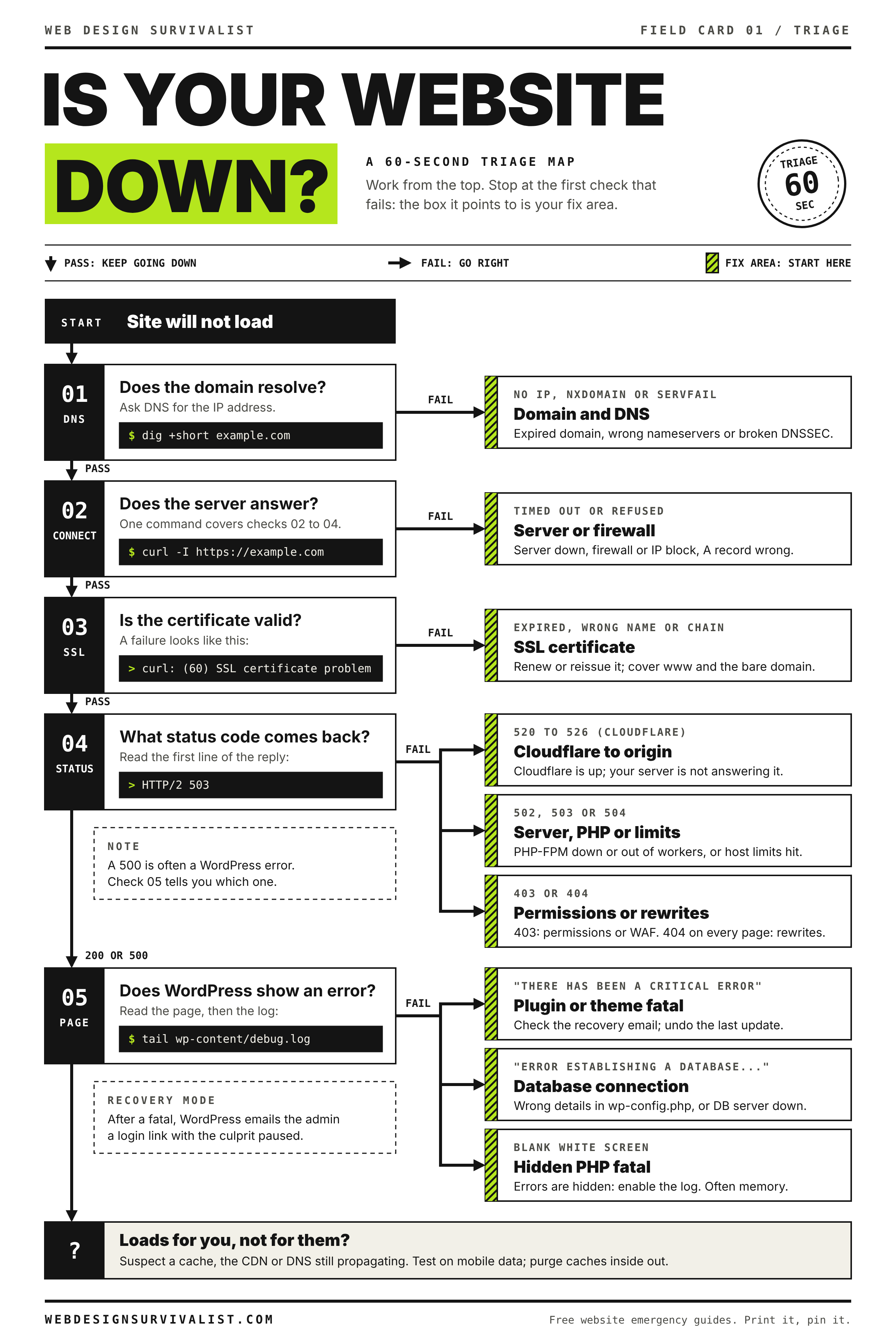
An error page loads (500, 502, 503) rather than a connection error: the server is reachable and the problem is the site. Start at the my site is down triage.
Field card 01: Is your website down? A 60-second triage map. Print it on any black and white printer. All field cards
If none of that worked
Send your host the results of each step: your public IPs, the nslookup answers from your resolver and from 1.1.1.1, the IPv4 and IPv6 curl results, a traceroute from the failing network and one from a working network, and the time it started. With those, a host can usually find the firewall rule, routing fault or DNS mismatch in minutes.
Usually the change was made at a DNS host your domain does not use, or a cache is holding the old answer. Ask the authoritative servers first, then work outward.
A visitor, a service or you got a Cloudflare block page. Search the Ray ID in Security Events, see which rule fired, and narrow it or skip it instead of turning protection off.