DNS Changes Not Showing Up? How to Find Out Why and Fix It
Usually the change was made at a DNS host your domain does not use, or a cache is holding the old answer. Ask the authoritative servers first, then work outward.
You changed an A record, an MX record or the nameservers, saved it, and nothing happened. The site still loads from the old server, a new subdomain gives DNS_PROBE_FINISHED_NXDOMAIN, or some people see the new version while you still see the old one. Everyone says “wait for propagation”, but it has been hours, and you do not know whether waiting will help at all.
DNS does not really propagate. Your change is live the instant the authoritative nameservers have it. What you are waiting for is resolvers, browsers and operating systems letting go of answers they cached earlier, and they each keep an answer for as long as its TTL says. If the authoritative servers do not have your change, no amount of waiting will fix it. This guide shows you how to tell which situation you are in within a few minutes.
What is happening
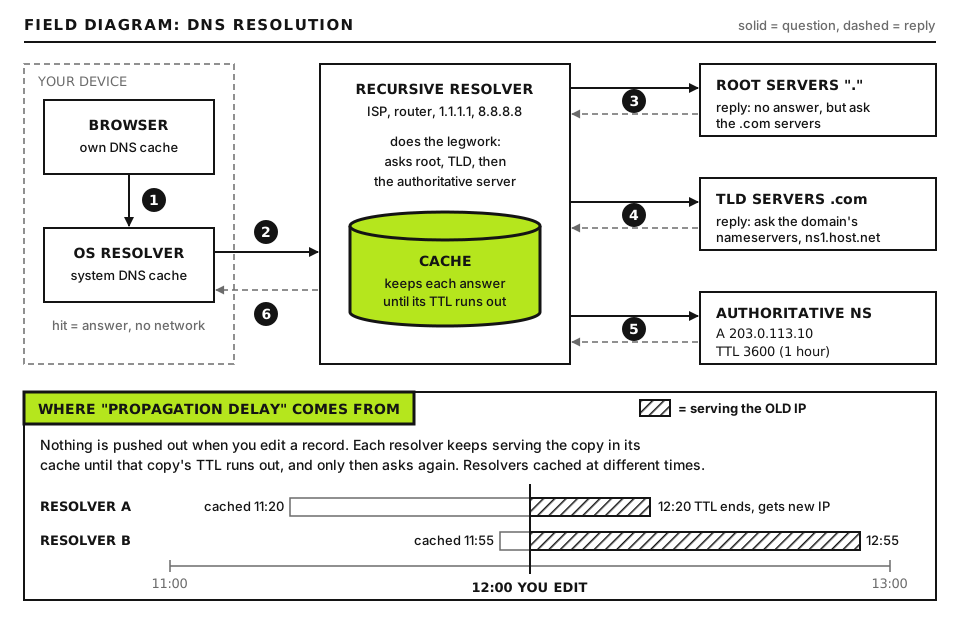
A lookup passes through several layers, and every layer can hold a copy of the old answer:
Nothing is pushed out: each resolver keeps the old answer until its TTL runs out. Open full size
Layer
What it holds
How long
Registry (for example .com)
Which nameservers are authoritative for your domain
A local cache, plus the hosts file which overrides DNS
TTL, and forever for the hosts file
Browser
Its own host cache, and sometimes its own secure DNS resolver
Usually short
An authoritative answer comes from the nameservers that own the zone. A recursive answer comes from a resolver that looked it up earlier and may be serving a cached copy. Your job is to compare the two.
Before you start
You need a login for the registrar and for whoever hosts the DNS, which may be the same company or may not. No server access is required, and no backup is needed for diagnosis since everything here is read only until you choose to edit a record.
How to run the commands. The dig commands run on your own computer. macOS has dig built in; on Linux install dnsutils (Debian, Ubuntu) or bind-utils (Fedora, RHEL family). On Windows, use WSL, or the PowerShell command Resolve-DnsName, which takes -Name, -Type and -Server. Cache flush commands are given per operating system in Step 4.
Step 1: Confirm you edited the right provider
This is the number one cause by a wide margin in support queues: the record was changed in a DNS editor the domain does not use. A registrar, a web host and a CDN can all offer a DNS editor for the same domain, and only one of them is live. The others are just forms that change nothing.
Find out who is authoritative
dig +short NS example.com
example.com is your domain. +short prints just the answer. The output is the list of nameservers the world uses, for example ns1.SOMEPROVIDER.com. or NAME.ns.cloudflare.com.. The provider in those names is the only place where record edits take effect.
If the names belong to your registrar but you edited records at your web host (or the other way round), that is your answer. Make the change at the provider named in the NS output, or switch the nameservers to the provider you edited, but not both at once.
Ask the registry, not a cache
If you recently changed nameservers, the answer above may itself be cached. Ask the registry servers directly:
dig +trace example.com A
+trace makes dig start at the root servers and follow each referral itself, without using any cache. Read the output from the top: the root servers refer you to the TLD servers, the TLD servers list your domain’s NS records, and the last block is the answer from your authoritative server. The NS names printed in the TLD block are what the registry currently has. If they still show the old nameservers, the registrar change did not go through or is still pending.
Registrar nameserver changes versus zone record changes
These are two different screens and two different timelines:
Nameserver change (at the registrar): decides who answers for the domain. The registrar sends it to the registry, which is usually quick, but resolvers may keep the old delegation for the registry’s NS TTL, often up to two days on .com.
Record change (at the DNS host): changes one answer inside the zone. Resolvers drop the old value after that record’s TTL.
A registrar showing a nameserver change as “pending” or a domain with a status such as clientUpdateProhibited or serverHold will not update at all until that is cleared.
Step 2: Ask the authoritative server directly
Now check whether your change is actually published.
dig @AUTH_NS example.com A +noall +answer
dig @1.1.1.1 example.com A +noall +answer
AUTH_NS is one of the nameservers from Step 1. The @ sends the question straight to that server. +noall +answer trims the output to the answer lines, each showing name, TTL, class, type and value. Change A to MX, TXT, CNAME or whatever you edited.
How to read the two results:
Authoritative shows the new value, 1.1.1.1 shows the old one. The change is live. You are waiting on cache. The TTL number in the 1.1.1.1 answer counts down to when it will refresh.
Both show the old value. The change is not published. Recheck Step 1, check that you saved it, and look for the mistakes in Step 3.
The nameservers disagree with each other. Query each NS in turn. If one has the new value and another does not, the secondary servers are not syncing (see the Advanced section).
Proxied answers are not wrong answers
If the domain uses Cloudflare with the record proxied, dig returns Cloudflare IP addresses instead of the server IP you typed. That is expected. The real origin IP is visible only in the Cloudflare dashboard.
Step 3: Look for editor mistakes
When the authoritative answer is not what you expect, the record is usually in the zone but not in the shape you think.
The doubled domain name
Many DNS editors append the domain to whatever you type in the name field. Typing www.example.com creates www.example.com.example.com. Check for it:
dig @AUTH_NS www.example.com.example.com A +short
Any answer means the record was created at the doubled name. Edit it so the name field holds only www, or @ for the bare domain, or the full name with a trailing dot if the editor supports that.
Conflicting and leftover records
Two A records for the same name, the old one and the new one, so resolvers rotate between them and visitors see both servers.
An AAAA (IPv6) record still pointing at the old server. Devices with IPv6 prefer it, so your phone sees the old site while your laptop sees the new one. Check with dig @AUTH_NS example.com AAAA +short.
A CNAME that the editor refused to save because another record already exists at that name.
Changes saved but not published
Some panels stage edits until you press a separate publish or save zone button. Some managed DNS products also require you to enable DNS for the domain before the zone is served at all.
Step 4: Clear the caches you control
Once the authoritative answer is right, the remaining delay is caching. Start with the cheapest culprit.
The hosts file
A line in the hosts file overrides DNS completely and never expires. Developers add them to preview new servers and forget them. Look in these files on your computer:
macOS and Linux: /etc/hosts
Windows: C:\Windows\System32\drivers\etc\hosts
Remove any line containing the domain, then flush the OS cache.
This is for macOS, typed in Terminal. The first command clears the directory service cache and the second tells the DNS responder to drop its cache. There is no output on success; you will be asked for your Mac password.
ipconfig /flushdns
This is for Windows, in Command Prompt or PowerShell. Good output is “Successfully flushed the DNS Resolver Cache.”
resolvectl flush-caches
This is for Linux systems that use systemd-resolved (most current desktop distributions). Run it with sudo if needed. Check it worked with resolvectl statistics, where the current cache size should drop to zero.
Browser cache
In Chrome and Edge, open chrome://net-internals/#dns (or edge://net-internals/#dns) and press Clear host cache, then on the #sockets page press Flush socket pools so existing connections to the old server are closed. In Firefox, open about:networking#dns and press Clear DNS Cache.
Also check whether the browser uses its own secure DNS (DNS over HTTPS). Chrome lists it under Settings, Privacy and security, Security, Use secure DNS; Firefox under Settings, Privacy and Security, DNS over HTTPS. If it is on, the browser asks its chosen provider rather than your OS, which explains why the terminal and the browser disagree.
Router
If every device on one network sees the old answer but your phone on mobile data sees the new one, the router or the ISP resolver is caching. Restarting the router clears its cache. You cannot clear your ISP’s resolver, but you can bypass it by setting your device to use 1.1.1.1 or 8.8.8.8 temporarily.
Step 5: Purge public resolver caches and check several resolvers
Two large public resolvers let anyone ask them to drop a cached record:
Cloudflare 1.1.1.1: https://one.one.one.one/purge-cache/. Enter the domain, pick the record type and submit.
Google Public DNS: https://developers.google.com/speed/public-dns/cache. Complete the check, enter the domain and type, and press Flush Cache. Google limits how often the same name can be flushed.
Purging only helps once the authoritative servers have the new value, and only for those two resolvers. Your ISP and corporate resolvers keep their copies until the TTL ends.
Then compare several resolvers at once:
for r in 1.1.1.1 8.8.8.8 9.9.9.9 208.67.222.222; do
  echo "$r: $(dig @$r +short example.com A | tr '\n' ' ')"
done
This loop asks Cloudflare, Google, Quad9 and OpenDNS in turn. tr puts multi line answers on one line. When all four match the authoritative answer, the change is effectively everywhere that matters. Mixed results with the old value on some are normal for the length of the old TTL. Our diagnostic tools can run a similar check from outside your network.
Step 6: Understand negative caching
If you created a brand new record (say a new subdomain) and somebody looked it up before it existed, resolvers cached the answer “this name does not exist” (NXDOMAIN) or “no record of this type” (NODATA). That negative answer is cached too, and adding the record does not clear it.
How long a negative answer is cached comes from the zone’s SOA record, as defined in RFC 2308: the lower of the SOA’s own TTL and its last field, the minimum.
dig @AUTH_NS example.com SOA +noall +answer
The output looks like example.com. 3600 IN SOA ns1.PROVIDER.com. hostmaster.example.com. SERIAL REFRESH RETRY EXPIRE MINIMUM, with numbers in place of the capital words. The first number is the SOA record’s TTL and the final number is the minimum. The smaller of the two is how long resolvers may remember that your new name did not exist. If it is 3600, a resolver that cached NXDOMAIN at 10:00 may keep saying so until 11:00. Purging at the public resolvers in Step 5 clears it there.
The lesson for next time: create the record first, then tell people about it or test it.
Advanced: Timing a change precisely
When you need to predict exactly when a change reaches everyone, work it out instead of guessing.
Record changes: the worst case is the old record’s TTL at the moment you changed it. If the record had a TTL of 86400, a resolver that fetched it a second before your edit may hold it for a full day. That is why you lower the TTL at least one old TTL before the change.
Nameserver changes: the worst case is the registry’s NS TTL plus the TTL of the old nameserver’s own NS records. Check the registry TTL with dig +norecurse @a.gtld-servers.net example.com NS for .com domains and read the TTL in the authority section. Keep the old DNS host serving the same records until that period has passed.
Resolver caps: many resolvers cap how long they cache any answer, which can make real behavior faster than the TTL suggests, but never rely on it.
Secondary nameservers that do not update
If your zone uses a primary server and secondaries (common with self managed DNS, panel clusters and some premium DNS products), the secondaries only fetch a new copy when the SOA serial number increases. Compare the serial on every nameserver:
for ns in $(dig +short NS example.com); do
  echo "$ns $(dig @$ns +short example.com SOA | awk '{print $3}')"
done
This prints each nameserver with its SOA serial (the third field). All serials should match. A lower serial on one server means it has not transferred the new zone: the serial was not incremented on the primary, NOTIFY messages are blocked, or zone transfers are refused. Until it catches up, roughly a share of lookups get the old answer depending on which server a resolver happens to ask.
When to contact your host
If the authoritative servers still return the old value after you have confirmed the right provider and saved the change, open a ticket with the DNS host. Include:
The domain, the record name and type, and the old and new values.
The time you made the change, in UTC.
Output of dig +short NS example.com and dig @AUTH_NS example.com TYPE for every nameserver, where TYPE is the record type.
The SOA serial from each nameserver if they differ.
For a nameserver change, a screenshot of the registrar’s nameserver screen and the dig +trace output.
If the domain does not resolve at all and you suspect expiry or DNSSEC rather than caching, our domain expired and DNSSEC guide covers that. For a site that is completely down right now, start at the Emergency Room.
Did this fix it?
Still stuck? Start again from what you can see in the Emergency Room.
Still stuck?
Print a free one-page checklist to keep, or open the Emergency Room if the symptom does not match.
Most broken Cloudflare moves come from a record the import scan missed, a proxied mail hostname or DNSSEC left on. Audit, compare and switch in the right order.
A registrar transfer moves the registration, not your website or mail. Downtime comes from DNS hosted at the old registrar. Secure the zone first, then transfer.
Web records point at the web host and mail records point at the mail provider. Mail breaks when a new host replaces the zone, or its server still thinks it handles your mail.