How to Restore a WordPress Site From a Backup (Without Losing New Orders)
Pick the right restore point, restore from a host snapshot, a backup plugin or raw files plus a SQL dump, and keep the orders and comments that arrived since.
An update broke the site, a hack defaced pages, or someone deleted the wrong thing, and you want to put it back from a backup. Restores cause a lot of extra damage: people pick the wrong restore point, overwrite the only copy of new orders, or restore a backup that already contains the problem.
A WordPress site is two things: files (core, themes, plugins, uploads) and a database (posts, settings, users, orders, comments, form entries). A restore puts one or both back to an earlier state. This guide shows site owners and designers how to do that safely, whether the backup lives at the host, in a plugin or as a zip and a .sql file.
What is happening
A backup is a snapshot of files, database or both at one moment. Restoring a part rolls it back to that moment, and anything created later in that part disappears: posts, users, comments, orders, settings and uploads. Choosing what to restore matters as much as choosing when.
A zip or tar of the site folder and a .sql or .sql.gz file
Works anywhere, full control
Easy to forget hidden files like .htaccess, or to import into the wrong database
If you are restoring because of a hack, read the first-hour hacked guide (FG-05) first. A restore removes the visible damage but does not close the hole the attacker used.
Before you start
Access you need: your hosting control panel login, SFTP or a file manager, and ideally SSH. If you use a backup plugin, you also need wherever it stores archives (Google Drive, Dropbox, S3 or the vendor dashboard).
Back up the broken site first. The current database holds every order, comment and form entry created since your last good backup. Once you restore over it, those rows are gone unless you saved them.
How to run commands. Commands that start with wp, mysql, tar or gunzip run in an SSH terminal on the server. Change into the site folder first, the one that contains wp-config.php, usually something like public_html. On some hosts WP-CLI is called wp-cli instead of wp. Commands starting with curl run on your own computer: macOS and Linux include it, and on Windows use curl.exe in PowerShell or a WSL terminal.
Here is the safety backup to take before anything else, run over SSH in the site folder:
wp db export ../pre-restore-YYYY-MM-DD.sql --single-transaction
tar -czf ../pre-restore-files-YYYY-MM-DD.tar.gz .
YYYY-MM-DD is today’s date, so you can tell the files apart later. The ../ puts both files one level above the web root, where nobody can download them through the browser. wp db export reads the database name, user and password from wp-config.php and runs mysqldump for you; extra flags such as --single-transaction are passed straight through to mysqldump, which takes a consistent copy of InnoDB tables without locking the site. In tar -czf, c creates an archive, z compresses it with gzip and f names the output file; the final . means the current folder, hidden files included. Good output from WP-CLI is Success: Exported to '../pre-restore-YYYY-MM-DD.sql'. and tar prints nothing. Error establishing a database connection means the credentials are wrong (see FG-01).
Step 1: Choose the right restore point
For a broken update or a bad change
Pick the newest backup taken before the change. If you know the update ran at 14:05 UTC on a given day, a backup from 03:00 UTC that morning is ideal. Check which time zone the backup list uses.
For a hack
Here the rule is different: pick a backup from before the infection, not before you noticed it. Attackers often plant a backdoor days or weeks before they use it. Find the earliest sign of compromise first. Over SSH in the site folder:
find . -name "*.php" -newermt "YYYY-MM-DD" -not -path "./wp-content/cache/*" | head -50
wp user list --role=administrator --fields=ID,user_login,user_registered
Replace YYYY-MM-DD with a date a few weeks before you noticed the problem. -newermt lists files modified after that date, -not -path skips the cache folder, which changes constantly, and head -50 stops a huge list from flooding the screen. Good output is a short list that matches updates you remember. Bad output is PHP files in wp-content/uploads, oddly named files in core folders, or files dated before any update you ran. The second command lists administrators with their registration date: an admin you do not recognize, created on a specific day, is a strong clue to when the attack started. Choose a backup from before the oldest suspicious date. Modification times can be faked, so treat this as a guide, not proof.
Check what the backup actually contains
Check that the backup set includes the parts you need and that sizes look normal; a database archive of a few kilobytes is a failed backup. For a manual dump, check the top and the bottom:
zcat BACKUP_FILE.sql.gz | head -20
zcat BACKUP_FILE.sql.gz | tail -5
BACKUP_FILE.sql.gz is the name of your compressed dump (use head and tail directly, without zcat, on an uncompressed .sql file). The top should show a -- MySQL dump or -- MariaDB dump header and the database name. The last lines should include -- Dump completed on followed by a date. If that line is missing, the dump was cut off and will import only part of your tables.
Step 2: Restore from a host snapshot
Most control panels keep automatic backups, the quickest route when WordPress will not load at all. Open the website in your control panel, find Backups, pick a date, and choose what to restore.
Restore the website, not the whole account if you have a choice. An account-level restore can also roll back mailboxes, DNS zones or other sites on the same account.
Look for partial options. Many panels let you restore only files, only a database, or a single folder. Use them (see Step 4).
Know the method. Some panels overwrite files in place and leave newer files alone, so a malicious file added after the snapshot survives. Ask your host before relying on it to clean a hack.
When the restore finishes, clear every cache layer (Step 6) before you judge the result.
Step 3: Restore from a backup plugin
Plugins such as UpdraftPlus, BlogVault and BackWPup store separate archives for the database and for groups of files, and can put any of them back.
If WordPress still loads
Go to the plugin’s screen in wp-admin (often under Settings or its own menu item) and open the list of existing backups.
Pick the restore point you chose in Step 1 and click Restore.
Check only the components you need: database, plugins, themes, uploads, others. Leave uploads unchecked if the problem was a plugin update; there is no reason to roll back media.
Keep the tab open until it finishes. An interrupted restore leaves a half-old, half-new site.
Log back in when prompted. A database restore replaces the users table too, so use the password that was valid at backup time.
If WordPress will not load
A plugin that runs inside WordPress cannot restore a site whose WordPress is dead. You have three ways round this:
Vendor dashboard restore. Services that store backups on their own servers (BlogVault and similar) can usually push a restore from their dashboard over SFTP or their own connector, without wp-admin.
Fresh install, then restore. Install a clean copy of WordPress in the same place (or let your host do it), install the same backup plugin, connect it to the same remote storage or upload the archive files, and run the restore from there.
Extract by hand. Most plugin archives are ordinary zip files plus a gzipped SQL file. Unzip them into wp-content and import the database as in Step 4.
Step 4: Restore manually, or restore only the database or only the files
You often do not need to restore everything. Matching the restore to the damage keeps more of your recent work.
What broke
What to restore
A plugin or theme update, white screen, PHP fatal errors
Files only (often only that plugin or theme folder)
To replace a single plugin from a backup archive, rename the current folder first so you can switch back, then extract the old one. Over SSH in the site folder:
mv wp-content/plugins/PLUGIN_SLUG wp-content/plugins/PLUGIN_SLUG.broken
tar -xzf ../BACKUP_FILES.tar.gz -C . ./wp-content/plugins/PLUGIN_SLUG
PLUGIN_SLUG is the plugin’s folder name, which you can see in wp-content/plugins or with wp plugin list. BACKUP_FILES.tar.gz is your file archive. In the tar command, x extracts, -C . extracts into the current folder, and the path at the end tells tar to pull out only that folder. The path must match how it is stored in the archive; run tar -tzf ../BACKUP_FILES.tar.gz | grep PLUGIN_SLUG | head first to see the exact path. No output from the extract means success. Not found in archive means the path did not match.
Restore only the database
Import the dump over the current database. Over SSH in the site folder:
wp db import BACKUP_FILE.sql
wp option get siteurl
BACKUP_FILE.sql is the uncompressed dump; unzip a .sql.gz first with gunzip -k BACKUP_FILE.sql.gz (the -k keeps the original). wp db import uses the credentials in wp-config.php and switches off unique and foreign key checks during the import to speed it up. Good output is Success: Imported from 'BACKUP_FILE.sql'., and the second command should print your live address. If it prints a staging or old address, the dump came from another copy of the site; the migration guide (FG-58) explains how to fix URLs safely. If the import fails with packet, collation or row size errors, see the large database import guide (FG-59).
Tables in the dump are dropped and replaced. Tables that exist now but are not in the dump are left alone, which is usually harmless.
Step 5: Keep orders, comments and form entries created since the backup
If the backup is from 03:00 and you restore at 16:00, every order, customer account, comment and form entry from those 13 hours lives only in the database you are about to overwrite.
Find out what you would lose
Before restoring, count what changed since the backup time. Over SSH in the site folder, on the current (broken) database:
wp db query "SELECT COUNT(*) FROM wp_comments WHERE comment_date_gmt > 'YYYY-MM-DD HH:MM:SS'"
wp db query "SELECT COUNT(*) FROM wp_users WHERE user_registered > 'YYYY-MM-DD HH:MM:SS'"
wp wc shop_order list --user=ADMIN_USER --after=YYYY-MM-DDTHH:MM:SS --fields=id,status,total --format=table
YYYY-MM-DD HH:MM:SS is the backup time in UTC; comment and user dates in these columns are stored in UTC. wp_ is the default table prefix: check yours with wp config get table_prefix and swap it in. The third line uses WooCommerce’s WP-CLI commands, which go through its REST API, so ADMIN_USER must be an administrator login; --after filters orders created after that date. A result of zero means you can restore the database freely. Any other number is data you must save first.
Ways to keep it
Restore files only if the damage was to code. This keeps the database, and every order in it, untouched. It is the right answer most of the time after a bad update.
Restore into a separate database and copy back what you need. Restore the old backup to a staging site or a second database, then copy the lost content (a deleted page, old settings) from there into the live site. Live orders never move.
Restore the database, then re-enter the gap. For a handful of orders, export them first (order details, customer, items, payment reference), restore, then recreate them by hand. Payment gateways still hold the original transactions, so match by transaction ID.
WooCommerce caveats
Orders live in different tables depending on storage mode. With High-Performance Order Storage (the default for new stores since WooCommerce 8.2) they are in wp_wc_orders and related wp_wc_order_* tables. Older stores keep them as shop_order posts in wp_posts and wp_postmeta. Line items are in wp_woocommerce_order_items and wp_woocommerce_order_itemmeta in both modes. Check yours under WooCommerce, Settings, Advanced, Features.
After a database rollback, new orders reuse IDs that the lost orders had. A payment gateway or shipping tool that remembers an order number from before the restore can then link to the wrong new order. If you rolled back and lost orders, consider raising the next order ID or using a sequential order number plugin with a new starting point.
Stock levels roll back too, so recheck stock on best sellers.
Subscription renewals are scheduled in the Action Scheduler tables (wp_actionscheduler_*), so a rollback can make one run twice or not at all. Check WooCommerce, Status, Scheduled Actions.
Step 6: Verify the restore
Do not trust the green check mark. Check the restore from the outside and the inside.
Clear caches. Purge your caching plugin, any server cache in the control panel and your CDN (in Cloudflare: Caching, Configuration, Purge Everything). Otherwise you may be looking at the old broken pages. The cache layers guide (FG-50) covers each layer.
Check the integrity of core and plugins over SSH in the site folder:
wp core verify-checksums
wp plugin verify-checksums --all
wp db check
These need no placeholders. wp core verify-checksums compares every core file against the official checksums for your WordPress version: good output ends with Success: WordPress installation verifies against checksums., while lines like File doesn't verify against checksum: wp-includes/FILE.php or File should not exist point to modified or added files. wp plugin verify-checksums --all does the same for plugins from wordpress.org; premium plugins will report that checksums are not available, which is normal. wp db check runs a table check and should show OK for every table.
Click through the important paths in a private window: home, a few posts, a contact form, search, login. On a store, place a test order with a test payment method and confirm the email arrives.
Step 7: What to do after the restore
Change passwords if the cause was a hack or is unknown: all administrator accounts, SFTP and SSH, the hosting control panel and the database user. After changing the database password, update DB_PASSWORD in wp-config.php.
Rotate the security keys with wp config shuffle-salts over SSH, which logs everyone out.
Update carefully. A backup restores old plugin versions, which may include the vulnerable one that let the attacker in. Update core, plugins and themes, but if an update caused the breakage, update everything except that plugin and wait for a fixed release.
If the site was hacked, watch for the problem returning over the next days. The reinfection guide (FG-26) explains how to find what was left behind.
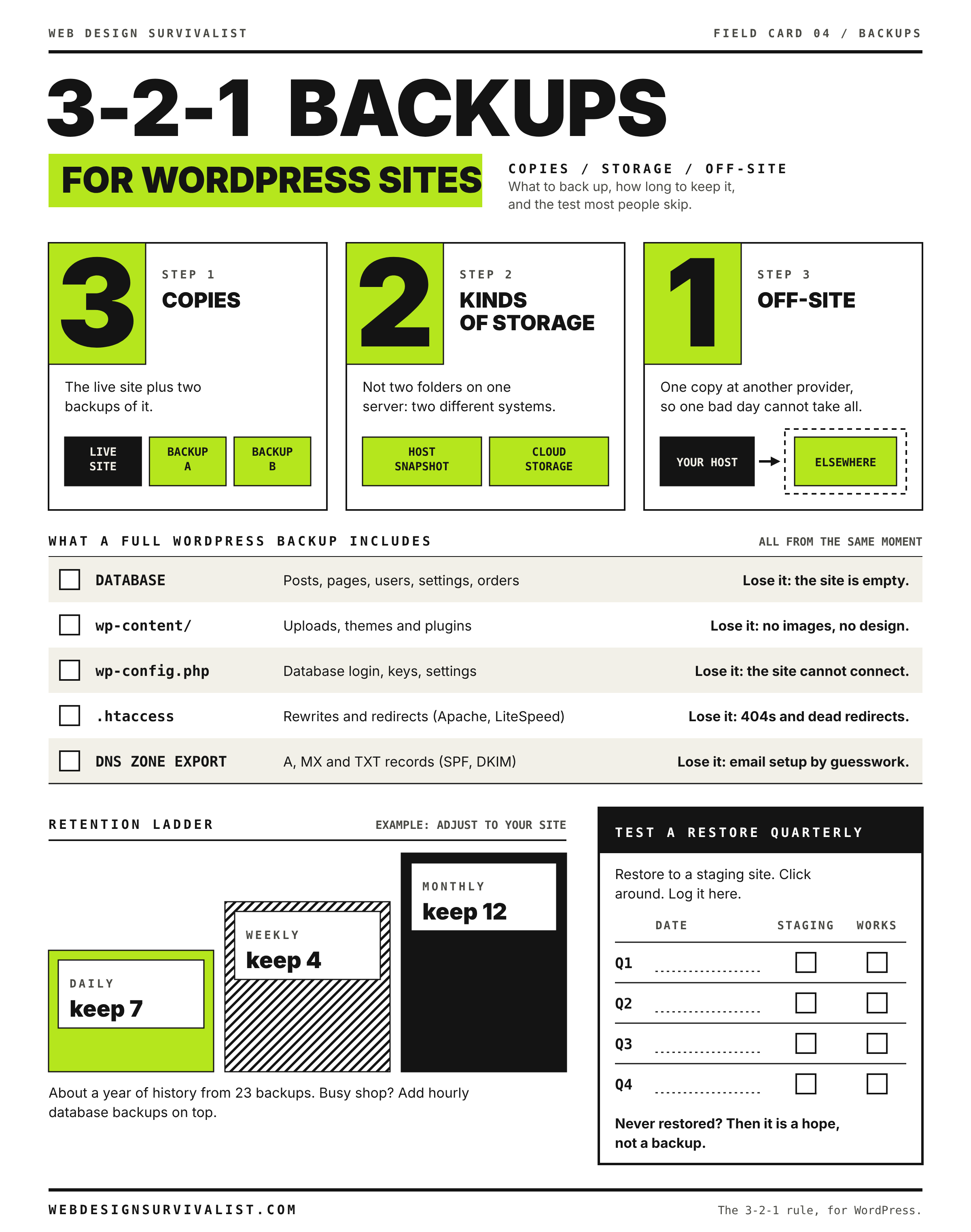
Field card 04: 3-2-1 backups for WordPress sites. Print it on any black and white printer. All field cards
Advanced: pull one table out of a full dump and compare backups
A full mysqldump file is plain text with each table in its own block that starts with a -- Table structure for table comment. You can extract one table and import only that. Over SSH, in a folder outside the web root:
sed -n '/^-- Table structure for table `TABLE_NAME`/,/^-- Table structure for table `/p' BACKUP_FILE.sql > one-table.sql
grep -c "INSERT INTO" one-table.sql
TABLE_NAME is the full table name with prefix, such as wp_options. sed -n prints nothing by default, and the /start/,/end/p range prints from the line that starts this table to the line that starts the next one. The last line of the output belongs to the next table and is only a comment, so it is harmless. The grep -c counts insert statements: zero means the pattern did not match (check the exact table name with grep "Table structure" BACKUP_FILE.sql). If the table is the last one in the file, the range runs to the end, which is fine.
Import it with wp db import one-table.sql. Because the block includes DROP TABLE IF EXISTS, only that table is replaced.
To compare a backup with the current site without touching live data, restore the backup into a second, empty database (create it in your control panel) and compare row counts with SELECT COUNT(*) on the tables that matter, such as wp_posts, wp_users and wp_comments.
When to contact your host
Open a ticket when the backups you expected are missing, a panel restore fails or hangs, or you need a restore from a snapshot only the host can reach. Send:
The domain, the restore point (date, time and time zone) and what to restore: files, the database (by name) or both, and whether email must be left alone.
When the problem started in UTC and what changed just before it (an update, a new plugin, a login you do not recognize).
Any error text from the restore tool, and whether you already took a copy of the current site.
For a hack, say so, so the host can check the logs and other sites on the account.
No backup? Check host snapshots, CDN caches, the Wayback Machine and old copies first, then rebuild from feeds and uploads, or rescue a database MySQL will not start.
UpdraftPlus backups that never finish, All-in-One WP Migration imports stuck or blocked by upload size, restores that fail halfway. Find the real limit from the log and get a working backup or move.
Fix failed WordPress SQL imports: MySQL server has gone away, phpMyAdmin limits, unknown collation utf8mb4_0900_ai_ci, DEFINER errors, row size too large and mojibake.