You edited a page, clicked Update, and the change is not there. Or it is there for you, but a client on another computer still sees last week’s prices. Or visitors see a cart with someone else’s items, a “Log out” link while logged out, or an old menu. The common search is “WordPress changes not showing”, and the answer is almost always a cache.
A cache is a saved copy of a response, served again to save work. A typical WordPress site has several, stacked on top of each other, and each one has its own rules for who gets a cached copy and when it expires. When you are logged in, most of them step aside for you, which is why you see the new version and visitors do not. This guide is for site owners, designers handing over sites, and freelancers chasing “I still see the old version” emails. If the issue is styles missing rather than old content, see the CSS not loading guide.
What is happening
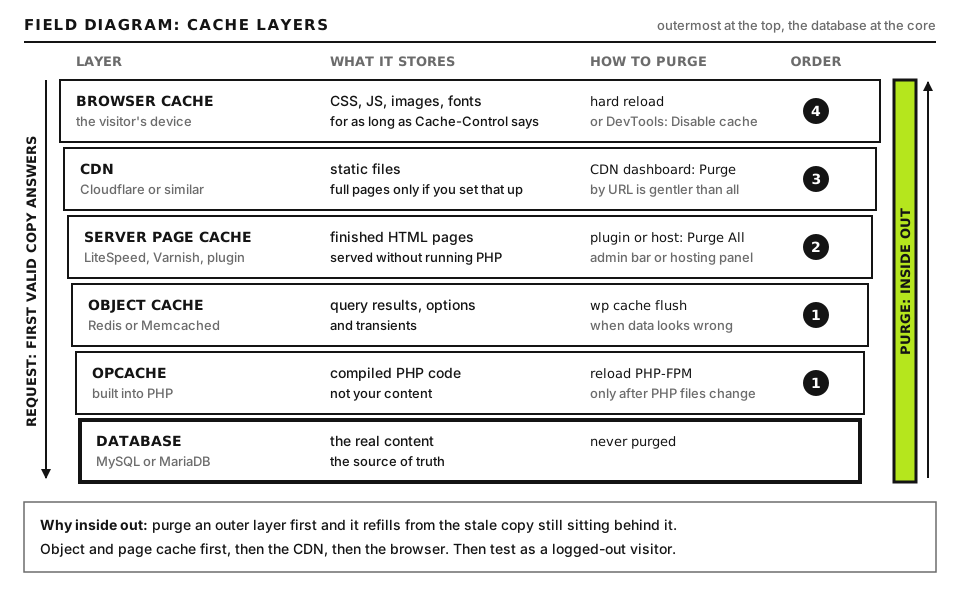
A request from a visitor can be answered by any of these layers. The first layer that has a valid copy wins, and nothing behind it runs.
The important part: purging the plugin does not purge Cloudflare, and purging Cloudflare does not purge Varnish. If you purge the front layer while an older copy sits behind it, the front layer simply re-fetches and re-caches the old copy.
Before you start
Access: WordPress admin, your hosting panel (for server cache purge buttons), and your CDN account.
Backup: purging caches is safe and needs no backup. Changing cache rules does; export your cache plugin settings first.
How to run commands: curl runs on your own computer (built into macOS and Linux; on Windows use WSL or curl.exe in PowerShell, because plain curl in older PowerShell is an alias for a different command). WP-CLI commands run over SSH in the site folder, the one containing wp-config.php, as wp or wp-cli depending on your host.
Private window: a private or incognito window starts with no cookies and an empty cache, which is the closest you can easily get to a first time visitor.
Step 1: Reproduce it as a visitor
Open the page in a private window. If you see the old version there and the new one in your normal logged in window, a shared cache is serving visitors. If the private window is correct but a particular visitor still sees the old version, their browser cache is the likely cause; ask them to hard reload (Ctrl+Shift+R, or Cmd+Shift+R on a Mac).
If even your logged in view is old, the change may not have saved, or an object cache or OPcache is involved; jump to Step 5.
Run on your computer, twice in a row. Replace example.com/PAGE_PATH/ with the page that looks wrong. -s hides progress and -I fetches headers only. The second run matters because the first request may have been the one that filled the cache. Read the headers with this table:
Header
Values and meaning
cf-cache-status
HIT served from Cloudflare’s cache. MISS fetched from your server, now cached. EXPIRED was cached, expired, re-fetched. REVALIDATED stale copy confirmed as still valid by your server. STALE or UPDATING an old copy served while Cloudflare refreshes. BYPASS your server or a rule told Cloudflare not to cache. DYNAMIC not eligible for caching; HTML pages are DYNAMIC by default unless you added a cache rule or APO.
age
Seconds since a shared cache stored this copy. A large number on a page you just edited means you are seeing an old copy from that cache.
x-litespeed-cache
hit served from LiteSpeed’s page cache. miss generated fresh. hit,private served from a per user private cache.
x-varnish
One number means a miss; two numbers mean a hit (the second is the ID of the request that stored the copy). Often paired with via: 1.1 varnish.
x-cache
Used by many CDNs and host caches; values like HIT or MISS, sometimes with a server name. Which layer added it depends on your setup.
x-fastcgi-cache or similar
Nginx FastCGI cache has no header by default; hosts add one from $upstream_cache_status with values HIT, MISS, BYPASS, EXPIRED, STALE, UPDATING, REVALIDATED.
cache-control
Instructions from your server. max-age is how long browsers may keep it; s-maxage is for shared caches; no-store, no-cache or private mean shared caches should not serve it to others.
Good output after a purge is a MISS on the first request and a HIT with a small age on the second, and the content is new. Bad output is a HIT with a large age immediately after you purged, which means you purged a different layer from the one serving the page.
Run on your computer. tail -n 5 shows the last five lines of the page source. Many page cache plugins add an HTML comment at the very end with the time the copy was made. If that time is older than your edit, the plugin cache is serving a stale copy. No comment does not prove anything; some plugins do not add one, and minifiers may strip it.
Step 3: Purge in the right order
Purge from the inside out, so each outer layer refills from fresh content:
Object cache, only if content or settings look wrong even when logged in (Step 5).
Page cache plugin: its admin bar “Clear cache” or “Purge all” button.
Server cache: LiteSpeed is purged by the LiteSpeed Cache plugin. Varnish or Nginx caches are usually purged from your hosting panel, a host plugin, or the host’s button in the admin bar.
CDN: in Cloudflare, Caching, then Configuration, then Purge Cache. “Custom Purge” by URL is faster and gentler than “Purge Everything”.
Browser: hard reload with DevTools open and “Disable cache” checked.
Then run the curl check from Step 2 again. Many plugins can purge the CDN for you when you update a post (for example the Cloudflare integration in several cache plugins, or Cloudflare’s own WordPress plugin with APO). Set that up once and most manual purging goes away.
Step 4: Fix logged in versus logged out differences
Visitors see things only logged in users should see
If logged out visitors see an admin bar, “Hi, NAME”, a filled cart or account details, a page was cached while someone was logged in and then served to everyone. This is a privacy problem, so act quickly: purge everything, then fix the exclusion.
Page caches decide whether to bypass by looking at cookies. These are the ones that matter for WordPress:
Cookie name pattern
Set by
Should bypass page cache?
wordpress_logged_in_*
WordPress login
Yes
wp-postpass_*
Password protected posts
Yes
comment_author_*
Someone who left a comment
Usually yes
woocommerce_items_in_cart, woocommerce_cart_hash
WooCommerce cart
Yes
wp_woocommerce_session_*
WooCommerce session
Yes
Also exclude URLs that must always be personal: /cart/, /checkout/, /my-account/ and any membership or dashboard pages. Most cache plugins add the WooCommerce ones automatically when they detect WooCommerce, but a server cache or a Cloudflare “cache everything” rule does not know about them. If you use a Cloudflare cache rule for HTML, add conditions that bypass cache when the request has a wordpress_logged_in or woocommerce_items_in_cart cookie, and for /wp-admin/ and the paths above.
You see the old page even when logged in
This points past the page cache. Either the edit did not save (check the post revisions), a builder stores generated CSS or HTML that needs regenerating (most builders have a “regenerate CSS” or “clear cache” tool), or the object cache holds an old value.
Step 5: Object cache and OPcache
Object cache
wp cache type
wp cache flush
Run over SSH in the site folder. wp cache type reports which object cache is in use; Default means no persistent object cache, while Redis or Memcached means a drop in file at wp-content/object-cache.php is active. wp cache flush empties it; good output is Success: The cache was flushed. A persistent object cache rarely causes stale page content on its own, but it can hold old option values, such as a site URL or a menu, after you change them directly in the database. Flushing it is safe; the site may be slightly slower for a minute while it refills. On shared Redis setups, a flush may affect only your site or every site using the same Redis database, so check with your host if you share one.
OPcache
OPcache keeps compiled PHP in memory. With default settings (opcache.validate_timestamps=1 and opcache.revalidate_freq=2), PHP checks files for changes every two seconds, so edits appear almost immediately. Some hosts set opcache.validate_timestamps=0 for speed, and then edited PHP files (a theme file you changed over SFTP, a wp-config.php edit) do not take effect until PHP is restarted. If you edited a PHP file and nothing changed even with every page cache purged, restart PHP from your hosting panel or open a ticket asking for an OPcache reset. OPcache never affects content you edited in the WordPress editor.
Step 6: The browser cache and static files
If the HTML is fresh but a changed stylesheet, script or image still looks old, the browser or CDN is holding the old file. WordPress usually appends ?ver=VERSION to stylesheets and scripts; if your theme or plugin did not change the version number, the URL stays the same and long max-age values keep the old file for days. Replacing an image with the same filename has the same effect.
To confirm, open the Network tab with “Disable cache” unchecked, reload, and check whether the file shows “(disk cache)”. Fix it by bumping the version (many builders and cache plugins do this when you regenerate assets), uploading replaced images under a new filename, and purging that URL in the CDN.
Advanced: ESI, fragment caching and testing like a visitor
ESI and hole punching
Edge Side Includes (ESI) let a cache store a page with “holes” that are filled separately. LiteSpeed Cache and Varnish support it. The page is cached publicly, and small fragments, such as a cart count, the admin bar or a form nonce, are fetched per user. This is how LiteSpeed can show x-litespeed-cache: hit,private to logged in users. If a fragment looks wrong (a cart count stuck at zero, an expired form token), check the ESI settings in the cache plugin and the time to live for that fragment.
If your stack does not support ESI, the same goal is reached with JavaScript: the page is cached and a small request to admin-ajax.php or the REST API fills in personal details after load. WooCommerce cart fragments work this way. A JavaScript optimization that delays that request makes the cart look empty until the visitor interacts; the delay JS guide covers excluding it.
Nonces and long cache lifetimes
WordPress forms and AJAX actions carry a nonce that is valid for up to a day. A page cached for longer can hold an expired nonce, so forms fail for visitors with a 403 or a vague error. Keep HTML cache lifetimes for pages with forms under that window, or use ESI or AJAX to load the nonce fresh.
Run on your computer. The first sends a no-cache request header; some caches honor it and some ignore it, so treat the result as a hint. The second adds a unique query string (RANDOM_STRING is any text you make up, changed every time), which most caches treat as a new URL, so you see what the origin generates now. The third uses --resolve to connect directly to ORIGIN_IP (your server IP from your hosting panel), skipping the CDN, so you can compare origin and edge. The fourth sends a fake logged in cookie (-b sets a cookie); a correctly configured page cache should respond with a bypass or miss, because it only checks the cookie name. If it returns a HIT, your cache is not excluding logged in users. Good overall output: the cache busting URL and the origin show the new content, the plain URL shows a HIT only after a purge, and the cookie request bypasses.
Vary and cache keys
A cache stores one copy per cache key, usually the full URL. If your server changes content by device, language or cookie without telling the cache through a vary header or a cache key setting, a desktop visitor can receive a mobile copy, or one language can leak into another. Plugins that serve separate mobile HTML need “separate cache for mobile” turned on in the cache plugin. Prefer responsive design over separate mobile HTML so this problem cannot happen.
When to contact your host
Open a ticket if a server cache keeps serving old content after you purged it from the panel, if you cannot find any way to purge a header you see (such as x-varnish or x-cache you did not set up), if you need an OPcache reset, or if logged out visitors see personal data. Send:
The URL and the full output of two consecutive curl -sI requests, with UTC times.
What you changed and when, and which purge buttons you used in which order.
Any Cloudflare Ray ID and the cf-cache-status value.
Whether the --resolve origin test shows new or old content.
If visitors cannot reach the site at all, start at the Emergency Room. The diagnostic tools can show headers if you cannot run curl.
Did this fix it?
Still stuck? Start again from what you can see in the Emergency Room.
Still stuck?
Print a free one-page checklist to keep, or open the Emergency Room if the symptom does not match.
PageSpeed says the server responds slowly. Measure TTFB with curl, prove whether page cache is working, then find the PHP, query or HTTP call eating the time.
Plain unstyled text, huge images and menus as bullet lists mean a stylesheet is not arriving. Find the failing CSS file in the Network tab, then fix the stale cache, wrong URL, permissions or security rule behind it.