Backup or Migration Plugin Failed? Fix UpdraftPlus and All-in-One WP Migration
UpdraftPlus backups that never finish, All-in-One WP Migration imports stuck or blocked by upload size, restores that fail halfway. Find the real limit from the log and get a working backup or move.
Your backup plugin was supposed to be the safety net, and now it is the problem. UpdraftPlus shows a backup that has been “in progress” for hours, or a finished backup with missing pieces. All-in-One WP Migration refuses your file because it is too big, or the import sits at the same percentage forever. A restore stopped halfway and the site is half old, half new. Or you are trying to move a site to a new host and the plugin that worked last year now fails every time.
Backup and migration plugins are PHP code running inside your website, so they live within the same limits as any page load: execution time, memory, upload size, disk space and the WordPress scheduler. Large sites hit those limits. This guide shows how to find which limit you hit, how to fix it for UpdraftPlus and All-in-One WP Migration in particular, and how to move or back up a site by hand when a plugin simply cannot cope. It is written for site owners and designers; commands are explained step by step.
What is happening
A backup plugin reads every file and every database row, compresses them into archives, and then uploads those archives somewhere. A migration plugin does the reverse on the new site: uploads an archive, unpacks it, imports the database and replaces the old address with the new one. Each stage can fail for different reasons.
PHP upload_max_filesize and post_max_size, web server or CDN body limits
Importing the database
Stuck at “restoring database”, errors about collation or “gone away”
Very large tables, different database versions, low timeouts
After the move
Redirects to the old site, broken images, login loops
Address not replaced everywhere, caches, hard-coded URLs
Before you start
Protect what you have. If the old site still works, leave it alone. Do not delete the source site, cancel old hosting or remove existing backup files until the new copy is tested.
Access you need: WordPress admin on both sites, your hosting control panel, and ideally SFTP and SSH.
Where commands run. Commands starting with wp, df, du or tar run over SSH on the server, in the site folder (the one containing wp-config.php). Some hosts name WP-CLIwp-cli. Commands starting with curl run on your own computer. The SSH commands cheat sheet covers connecting.
Step 1: Read the log, not the progress bar
Progress bars stall at a percentage that tells you nothing. The log names the last thing the plugin did before it stopped.
UpdraftPlus: in Settings, UpdraftPlus Backups, the Backup / Restore tab shows the latest log message during a run, and each backup in Existing backups has a link to its log. Log files are stored as log.*.txt in wp-content/updraft, next to the backup archives.
All-in-One WP Migration: the import and export screens show status messages. For server-side errors, read the PHP error log in your hosting panel at the time of the failure.
PHP error log: the control panel cheat sheet shows where it lives on cPanel, Plesk, DirectAdmin and Enhance.
Over SSH you can read the newest UpdraftPlus log quickly:
ls -t wp-content/updraft/log.*.txt | head -n 1 | xargs tail -n 40
ls -t lists logs newest first, head -n 1 keeps only the newest, and xargs tail -n 40 prints its last 40 lines. Look for lines containing error, exhausted, timeout, space or failed. A log that simply ends mid-task with no error usually means PHP was killed by a time limit or the process was never resumed.
Match what you find to the table below and jump to the right step.
Log or screen says
Go to
Scheduler disabled, or the backup never starts
Step 2
Allowed memory size ... exhausted or Maximum execution time
Step 3
No space left on device, or zero-byte archives
Step 4
Import file too large, upload fails, 413
Step 6
Stuck restoring the database, MySQL server has gone away
Step 7
Step 2: Get the scheduler running
UpdraftPlus splits a big backup into a series of resumptions, each started by the WordPress scheduler (WP-Cron). If WP-Cron does not run, scheduled backups never begin, and big manual backups stop after the first chunk. UpdraftPlus warns about this directly: “The scheduler is disabled in your WordPress install, via the DISABLE_WP_CRON setting.”
Check whether cron is disabled:
wp config get DISABLE_WP_CRON
This reads the constant from wp-config.php. 1 or true means WordPress will not run scheduled tasks on page loads. An error saying the constant is not defined means cron is not disabled there (a plugin could still interfere). If it is disabled, either your host runs a real server cron job that calls WP-Cron, or nothing runs scheduled tasks at all. Check the cron jobs in your control panel for a line calling wp-cron.php or wp cron event run --due-now.
Then see whether the backup events exist and are overdue:
wp cron event list --fields=hook,next_run_relative | grep -i updraft
Good output shows updraft_backup style hooks scheduled in the future. Events that say “now” or show a time in the past and never clear mean cron is not firing. The full fix, including setting up a reliable server cron, is in WP-Cron not running. Also note that low-traffic sites relying on visits to trigger WP-Cron can see backups resume late. A server cron job every 5 to 15 minutes solves that.
If Site Health also reports a loopback failure, fix that too: plugins that resume work in the background often depend on the site being able to call itself. See loopback request failed.
Step 3: Fix time and memory limits
Compressing gigabytes of files is heavy work for PHP. Two errors are common:
Allowed memory size of ... bytes exhausted: PHP ran out of memory, often on a huge single file or database table.
Maximum execution time of ... seconds exceeded: the request ran longer than PHP allows. Web server and proxy timeouts can also cut it off silently, sometimes showing a 502 or 504 error.
This prints the memory limit and time limit as PHP on the command line sees them. Web requests can use different values, so confirm in Tools, Site Health, Info, Server, which shows what the website itself uses. How to raise them in each panel is in memory exhausted and maximum execution time and the PHP settings cheat sheet.
Inside UpdraftPlus, also reduce how much each step does:
Split archives smaller. UpdraftPlus splits large backups into multiple archives, 400 MB each by default. In the Settings tab, open the expert settings and lower Split archives every (for example to 100 MB) on servers that struggle. Smaller pieces finish within the time limit and upload more reliably.
Exclude what does not belong. Old backup folders from other plugins, cache folders, log files and video files you host elsewhere can double the size of a backup. Add them to the exclusions for the uploads and “Any other directories” sections.
Step 4: Free disk space and remove nested backups
The plugin writes the archive to the server first, then uploads it. So you need free space roughly equal to the compressed size of the site, and more during a restore when the archive and the unpacked files exist side by side. A disk that fills mid-run leaves a truncated or zero-byte archive.
df -h ~ shows free space on the disk holding your home folder, in human-readable sizes. The du line lists the size of each folder in wp-content, sorted so the largest ten appear last. Typical surprises: wp-content/updraft full of old archives, wp-content/ai1wm-backups holding old .wpress files, and backup folders from plugins you stopped using. Each new backup then includes all the old ones.
Download any archive you still need, then delete the old ones from the plugin’s own screen where possible. On shared hosting, also check the account quota and inode limit; see disk full or inode quota exceeded. Set UpdraftPlus to keep a sensible number of local copies and rely on remote storage for history.
Step 5: Fix remote storage uploads
If the backup completes locally but never appears in Google Drive, Dropbox, OneDrive or S3:
Re-authenticate. In the UpdraftPlus Settings tab, open your storage method and run its test or re-authorize link. Tokens expire, and changing a Google or Microsoft password can revoke them.
Check the storage itself. A full Google Drive or a bucket policy that denies writes stops uploads.
Split archives smaller (Step 3). Big archives are more likely to fail on slow uploads.
Read the log for the HTTP status returned by the storage service: 401 or 403 means credentials or permissions, 507 or quota messages mean storage is full.
Until uploads work, download the archives from Existing backups to your own computer. A backup stored only on the same server dies with that server.
Step 6: All-in-One WP Migration upload size and imports
All-in-One WP Migration packs the whole site into one .wpress file and imports it by uploading through the browser. The import screen shows a maximum upload size. The plugin’s developer, ServMask, documents that this number comes from your host’s PHP settings (the smaller of upload_max_filesize and post_max_size), not from the plugin, and offers a paid Unlimited Extension for imports that PHP limits block. Figures for free version caps quoted elsewhere online vary, so trust what your own import screen shows.
Raise the upload limit
On the destination site, raise upload_max_filesize and post_max_size above the size of your .wpress file, and memory_limit and max_execution_time to generous values for the duration of the import. Where to do that per panel is in the PHP settings cheat sheet, and upload_max_filesize and 413 errors covers web server and CDN limits too. Reload the import page afterward; the displayed maximum should change. Some hosts set a hard cap you cannot raise; ServMask keeps a list of hosts with known restrictions.
Uploads through Cloudflare or another proxy can also be refused for size by the proxy itself. If the upload fails at the same point every time even though PHP limits are high, try the import with the proxy paused or through the server’s own address.
Shrink the export instead
The export screen has advanced options to leave things out, such as spam comments, post revisions, the media library, themes or inactive plugins. Leaving out the media library and copying wp-content/uploads separately by SFTP often brings a huge export down to a size that imports easily. Delete old .wpress files in wp-content/ai1wm-backups on the source first, or they may be packed into the new export.
Import stuck at a percentage
ServMask’s own advice for a restore that sits on “restoring database” is to leave it running for another 15 minutes, because large tables take time. If it is still stuck after that:
Check the PHP error log on the destination for memory, time or database errors at that moment.
Confirm both sites run similar PHP and database versions; importing a database from a much newer MySQL or MariaDB into an old one can fail on collations (see large database import fails).
Update the plugin on both sides to the same current version before exporting again.
Disable security and caching plugins on the destination during the import, and pause any CDN proxy.
Restoring from the plugin’s Backups page
All-in-One WP Migration also lists backups it has made on its Backups page. ServMask’s documentation describes restoring from that page, including from files placed in the backups folder on the server, as an Unlimited Extension feature. With the free plugin, the route is the Import screen and an upload. If you are stuck on that, the manual method in Step 8 always works.
Step 7: Restores that stop halfway
A failed restore can leave a mix of old and new files and a partly imported database. Do not run the same restore over and over on a live site.
Put the site in maintenance mode or tell visitors it is down for maintenance, so nobody places orders into a half-restored database.
Take a copy of the current state before trying again, even though it is broken. Export the database with wp db export broken-YYYY-MM-DD.sql (run over SSH in the site folder; it writes an SQL file with the date you type).
Restore one component at a time. UpdraftPlus lets you choose components on restore: plugins, themes, uploads, others and the database. Restore the database alone first, then the rest. If one archive keeps failing, the log names it; download it and check it opens on your computer. A corrupted archive cannot be restored, so use an older backup set for that component.
Restore through a fresh install if wp-admin itself is broken: install clean WordPress, install the same backup plugin, upload the backup files (UpdraftPlus: upload them in Existing backups, or place them in wp-content/updraft and use Rescan local folder), then restore.
When the database import fails with MySQL server has gone away or timeouts, the database is too big for the plugin’s import method on that server. Import it with WP-CLI or the host’s tools instead, as in Step 8 and large database import fails.
Step 8: Move or back up by hand when the plugin cannot
A manual backup has no size limit other than disk space, and does not depend on any plugin to restore. Over SSH in the site folder:
wp db export ~/site-db-YYYY-MM-DD.sql
tar -czf ~/site-files-YYYY-MM-DD.tar.gz --exclude=wp-content/updraft --exclude=wp-content/ai1wm-backups --exclude=wp-content/cache .
wp db export writes the whole database to an SQL file in your home folder. tar -czf creates a compressed archive (c create, z gzip, f file name follows) of the current folder ., and each --exclude leaves out old backups and cache folders. Replace YYYY-MM-DD with today’s date. No output means success; download both files with SFTP. No space left on device means you need to free space first (Step 4).
To restore or migrate them, follow moving WordPress by hand. If the address changes, replace it with WP-CLI and always run the dry run first:
The first address is the old one and the second the new one. --all-tables includes plugin tables with a different prefix, and --dry-run reports how many replacements would be made in each table without changing anything. Run it again without --dry-run when the counts look sensible. WP-CLI’s search-replace handles serialized data correctly, which a plain SQL replace does not. If the site still redirects to the old address afterward, see redirects to the old domain after migration.
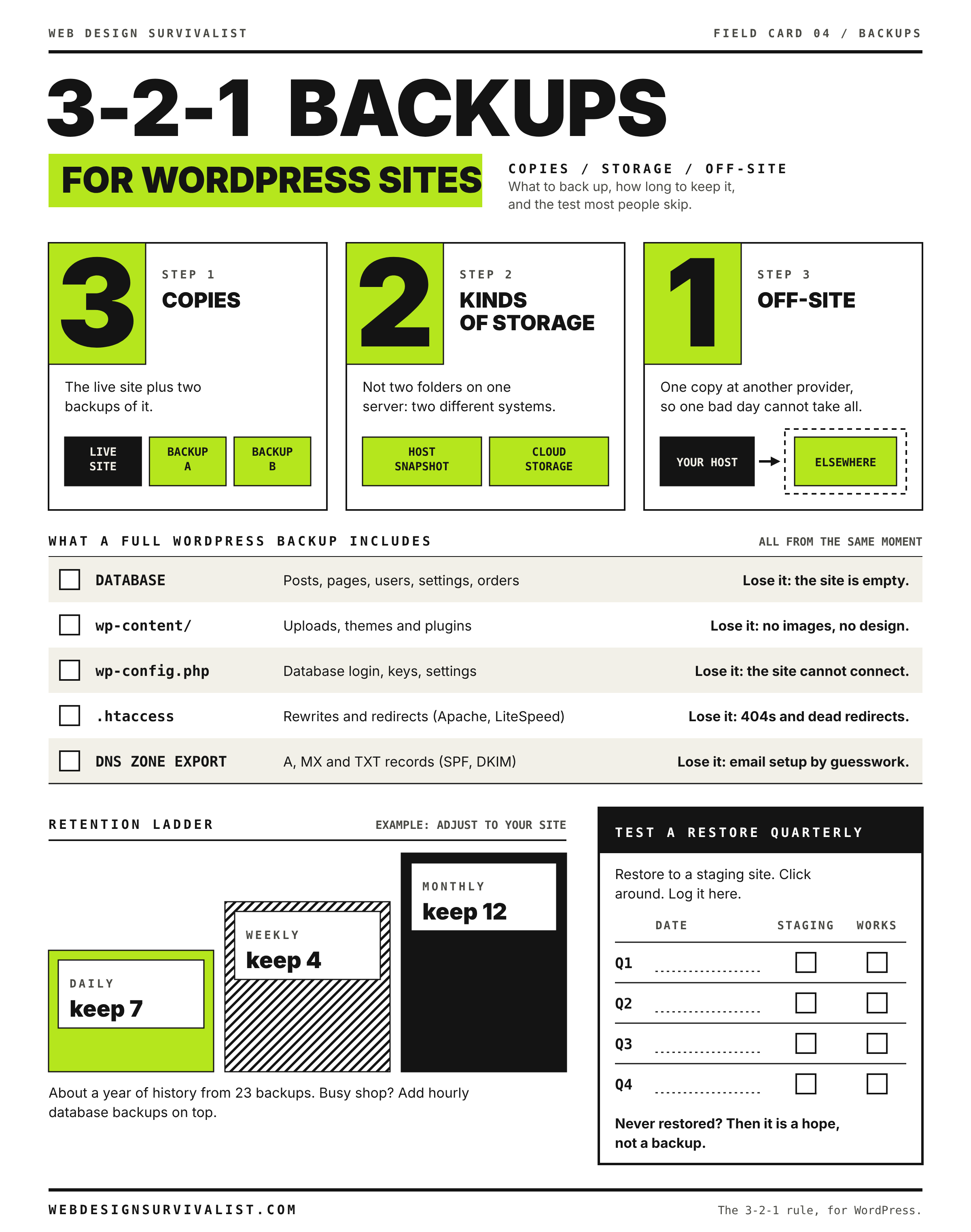
Field card 04: 3-2-1 backups for WordPress sites. Print it on any black and white printer. All field cards
Advanced: check a backup archive before you need it
A backup that has never been opened is a hope, not a backup. Download a recent set to your computer and check it:
UpdraftPlus archives are standard zip files (plus a gzip compressed SQL file for the database). They should open with any archive tool. The database file should end with SQL statements, not stop mid-line.
For a manual tar archive, list its contents without extracting: tar -tzf site-files-YYYY-MM-DD.tar.gz | head on your computer or the server. An error such as unexpected end of file means the archive is truncated.
For an SQL dump, the last lines usually include a completion comment such as -- Dump completed on. Check with tail -n 3 site-db-YYYY-MM-DD.sql.
Best of all, restore the backup to a staging site a few times a year and click around. The backup plan checklist covers frequency and retention.
When to contact your host
Ask your host for help when you cannot raise PHP limits yourself, when the disk quota is the blocker, or when an import fails on their database server. Send:
the plugin name and version, and the size of the site or archive;
the last 20 lines of the plugin log and any PHP error log lines from the same time;
the values you need for the job (for example upload size above the archive size, a longer execution time) and for how long;
whether they can take a server-side backup or import a database dump for you, which avoids PHP limits entirely.
Many hosts already keep their own backups. Ask what they hold before you spend hours on a plugin; the restore guide explains how to use them safely.
Did this fix it?
Still stuck? Start again from what you can see in the Emergency Room.
Still stuck?
Print a free one-page checklist to keep, or open the Emergency Room if the symptom does not match.
No backup? Check host snapshots, CDN caches, the Wayback Machine and old copies first, then rebuild from feeds and uploads, or rescue a database MySQL will not start.
Fix failed WordPress SQL imports: MySQL server has gone away, phpMyAdmin limits, unknown collation utf8mb4_0900_ai_ci, DEFINER errors, row size too large and mojibake.
Pick the right restore point, restore from a host snapshot, a backup plugin or raw files plus a SQL dump, and keep the orders and comments that arrived since.