How to Fix ERR_CERT_DATE_INVALID (Expired SSL Certificate)
Your SSL certificate expired, or the visitor’s clock is wrong. Confirm which with one command, renew the certificate, and fix the DNS, CAA or blocked-challenge problem that stopped it renewing.
Chrome and Edge show Your connection is not private with the code NET::ERR_CERT_DATE_INVALID. Firefox shows Warning: Potential Security Risk Ahead with SEC_ERROR_EXPIRED_CERTIFICATE, and Safari says This Connection Is Not Private.
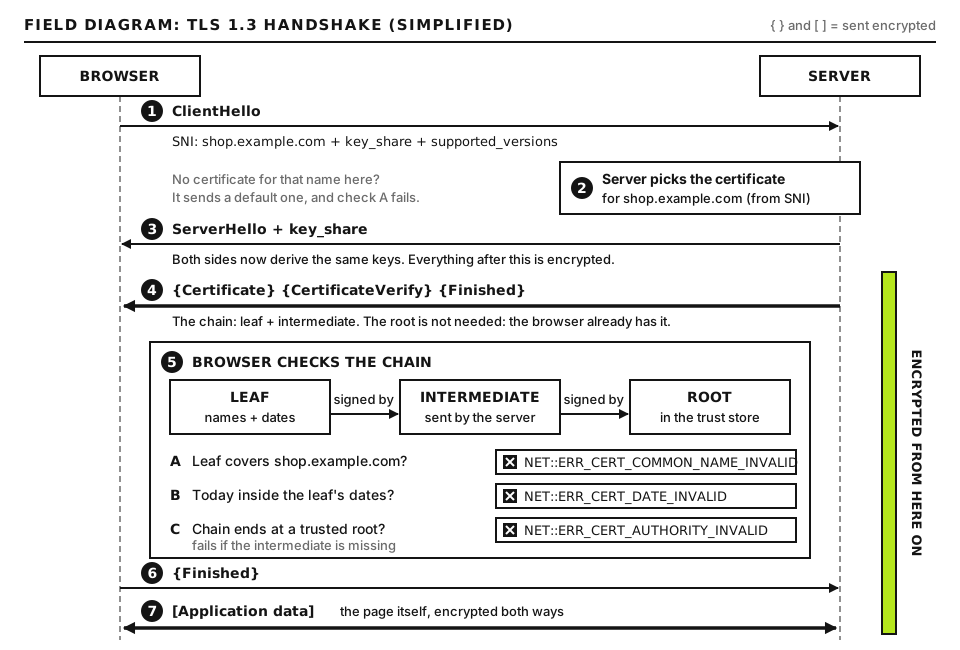
An SSL certificate (technically a TLS certificate) is what lets browsers connect to your site over HTTPS and trust it. Every certificate has a start date and an end date. This error means today’s date, as the visitor’s device sees it, falls outside that window. Either the certificate really expired, which is the usual case when everyone sees the error, or the visitor’s device clock is wrong, which is the usual case when only one person does.
Before you start
Access you need: your hosting control panel (its SSL or certificates section), your DNS provider, your CDN dashboard if you use one, and a terminal for the openssl and dig commands below (macOS and Linux include them; on Windows you can use WSL or an online certificate checker instead).
Where to run the commands. Every command in this guide runs in a terminal on your own computer, not on the server, and changes nothing: they only look. Replace example.com with your own domain each time it appears. Words in CAPITALS are placeholders, explained next to each command.
Do not tell visitors to click through the warning. It trains people to ignore real attacks, and many browsers block it anyway on sites that use HSTS, a header that tells browsers to only ever connect over HTTPS.
Step 1: Confirm the certificate dates
Use the health check in our diagnostic tools, or run this command, replacing example.com with your domain in both places:
The date check happens in the browser, against the leaf certificate and the device clock. Open full size
Type it on one line. The first half connects to your site on the HTTPS port (:443) and fetches its certificate; -servername sends your domain name so a server that hosts many sites hands over the right certificate; </dev/null closes the connection straight away, and 2>/dev/null hides connection chatter. The second half prints the certificate’s dates (-dates), who issued it (-issuer) and which name it covers (-subject).
notAfter is in the past: the certificate expired. Go to Step 3.
The dates cover today: the server is fine. If one visitor still sees the error, go to Step 2.
The subject or issuer is not what you expect (for example a CDN’s name, or your host’s default certificate): you are looking at a certificate served by something in front of your site, or the wrong site on the server. See Step 6.
Check both example.com and www.example.com. They can be served by different certificates, and one can expire while the other renews.
Step 2: If only one visitor sees it, check their clock
If the certificate is valid but one person or one device gets the error, that device’s date or time is almost certainly wrong. Chrome often says so directly: “Your clock is behind” or “Your clock is ahead”. Ask them to turn on automatic date, time and time zone in their device settings, then reload. A dead clock battery in an old desktop, or a device that has been powered off for a long time, is a common cause. Very old devices that no longer receive updates can also fail on modern certificates for other reasons, and the fix there is updating or replacing the device.
Step 3: Renew or reissue the certificate
Most hosts issue free certificates from Let’s Encrypt or a similar authority and renew them automatically. In your hosting panel, find the SSL or certificates section for the domain and use its renew, reissue or “run AutoSSL” option. Then rerun the command from Step 1 and reload the site in a private window.
If the panel reports an error, or the renewal seems to succeed but the old dates remain, do not keep clicking. The renewal is failing for a reason, and the next steps find it.
Some context: Let’s Encrypt certificates last 90 days and are normally renewed around 30 days before they expire, so an expired Let’s Encrypt certificate usually means renewal has been failing silently for weeks. Industry rules are also shortening the maximum lifetime of all public certificates in stages over the next few years, which makes working automatic renewal essential.
Step 4: Check that DNS still points to the server doing the renewal
Before issuing a certificate, the authority checks that you control the domain. The most common method, called the HTTP-01 challenge, works like this: your server places a small file at http://example.com/.well-known/acme-challenge/, and the authority’s servers fetch it over the internet on port 80. If that request does not reach the server that is trying to renew, validation fails and so does the renewal.
The usual reason is that DNS moved. You switched hosts or DNS providers, and the domain now points somewhere else, or partly somewhere else. Check:
dig A example.com +short
dig AAAA example.com +short
dig A www.example.com +short
Replace example.com with your domain. A asks for the IPv4 address, AAAA for the IPv6 address, and +short prints only the answer. An empty answer means there is no record of that type. Your current server’s address is shown in your hosting panel, usually labeled server IP, shared IP or dedicated IP. On Windows without WSL, nslookup -type=AAAA example.com gives the same information.
Every answer should be your current server’s address (or your CDN’s, if you use one). Pay special attention to AAAA, the IPv6 address record. An old AAAA record left behind after a move is a classic trap: Let’s Encrypt prefers IPv6 when an AAAA record exists, so validation goes to the old server even though the site loads fine for you over IPv4. Delete or correct stale records, wait for the record’s TTL (time to live) to pass, and retry.
Wildcard certificates (for *.example.com) use a different method, DNS-01, which requires your host to create a DNS record automatically. If you moved DNS to a provider your host cannot update, wildcard renewal fails. Either move DNS back, switch to individual names, or set up renewal with your new DNS provider.
Step 5: Check CAA records and anything blocking the challenge
CAA records list which certificate authorities may issue certificates for your domain. They are optional, but if one exists and does not include your host’s authority, issuance is refused.
dig CAA example.com +short
Replace example.com with your domain. No output means no restriction. If you see entries such as 0 issue "digicert.com" and your host uses Let’s Encrypt, add 0 issue "letsencrypt.org" (or whatever authority your host names) as a new CAA record at your DNS provider, on the bare domain. Many DNS panels split this into separate fields: flag 0, tag issue, value letsencrypt.org.
Blocked challenge requests are the other common cause. Anything that stops an outside server fetching /.well-known/acme-challenge/ over HTTP will break renewal:
A security plugin, firewall or country block that rejects unknown visitors.
Password protection or a “coming soon” page covering the whole site.
Custom .htaccess or Nginx rules that deny dot folders such as .well-known.
A CDN or proxy that answers the request itself instead of passing it to your server.
Test from outside by requesting a made-up file: curl -I http://example.com/.well-known/acme-challenge/test. Replace example.com with your domain and leave test as it is: the file does not need to exist. -I fetches only the response headers, and the first line shows the status. A 404 Not Found from your own server is fine, because it proves requests reach the folder. A 403 Forbidden, a login page or a CDN error page is not.
Step 6: Edge certificate versus origin certificate
If you use a CDN such as Cloudflare, there are two certificates: the edge certificate visitors see (managed by the CDN) and the origin certificate on your hosting server (used between the CDN and your server). The openssl command in Step 1 shows the edge certificate.
If the edge certificate expired, fix it in the CDN dashboard. Your host cannot renew it.
If the origin certificate expired, visitors usually see a CDN error page rather than a browser warning. On Cloudflare that is Error 526, “Invalid SSL certificate”. Renew it at your host.
To check the origin directly, connect to your server’s IP address while still sending your domain name:
Replace SERVER_IP with your hosting server’s IP address from your hosting panel. Do not take it from dig: behind a CDN, DNS returns the CDN’s address. Replace example.com with your domain. The output reads the same way as in Step 1.
Step 7: Check the certificate chain
Browsers need your certificate plus one or more intermediate certificates that link it to a trusted root. If the server sends only the site certificate, or an outdated intermediate, some browsers and devices fail. This usually produces a different error, such as an authority or trust error, but outdated intermediates can cause date errors on older devices. To see what the server sends:
Replace example.com with your domain in both places. -showcerts prints every certificate the server sends, each between BEGIN CERTIFICATE and END CERTIFICATE lines, and the Certificate chain section near the top lists them by number. You should see at least two certificates. If you installed a certificate by hand, install the full chain file your authority provided (for Let’s Encrypt this is usually fullchain.pem, not cert.pem).
After the fix: a separate problem you may see
Once the certificate is valid, you might notice a broken padlock or “Not secure” on some pages. That is mixed content (images, scripts or styles still loaded over http://), which is a different problem from an expired certificate and is fixed by updating those URLs.
When to contact your host
Contact your host if renewal keeps failing after you have checked DNS, CAA and blocking rules, or if you cannot find the SSL section in your panel. Send them:
The output of the Step 1 command, including the dates and issuer.
The exact renewal error message from the panel, with the time you tried.
Your current A, AAAA and CAA records from the dig commands.
Whether a CDN or proxy sits in front of the site, and any recent DNS or hosting changes.
Did this fix it?
Still stuck? Start again from what you can see in the Emergency Room.
Still stuck?
Print a free one-page checklist to keep, or open the Emergency Room if the symptom does not match.
Your certificate is valid but was issued for a different name. Learn how to read the SAN list, fix www and subdomain gaps, and stop the server sending the wrong certificate.
Works in your browser but fails on Android, curl or an API client? The server is probably missing its intermediate certificate. Learn to test and fix the chain.
Your free certificate will not issue or renew. Read the validation error, then fix DNS, the Cloudflare proxy, blocked .well-known paths, CAA records, port 80 or rate limits.