How to Fix the WordPress White Screen of Death (Blank Page, No Error)
Your WordPress site shows a completely blank page with no message. Find the hidden error in the logs, then rule out theme code, empty files, stale cache and opcache.
You load your site and get nothing. No header, no error, no “critical error” notice. Just a white page. Sometimes only the front end is blank and /wp-admin/ still works. Sometimes it is the reverse, and sometimes one single page is blank while the rest of the site is fine.
A white screen is not a separate kind of failure. It is almost always a PHP error that happened somewhere you cannot see it, or a response that reached your browser empty. The fix is to find out which, and the logs on your server usually tell you within a minute. This guide is for site owners, designers and freelancers who are staring at a blank page with no clue to go on. If you see the message “There has been a critical error on this website”, that is the same family of problem with a visible notice, and our separate guide on the critical error screen covers it.
What is happening
When a visitor requests a page, the web server (Apache, Nginx or LiteSpeed) hands the request to PHP, usually through PHP-FPM. PHP runs WordPress, builds the HTML and hands it back. A white screen means that handoff returned an empty or nearly empty body.
Since WordPress 5.2, a built-in fatal error handler catches most fatal PHP errors and prints the “critical error” message instead of a blank page. So when you see pure white, it usually means one of the conditions in this table applies:
Situation
Why you see white instead of a message
display_errors is off (normal on production)
PHP writes the error to a log file, not to the page. This is correct and safe, but it hides the clue.
Output had already started
The fatal error handler only prints its template on the front end if no HTTP headers have been sent yet. If the theme already sent part of the page, the error is logged and the response simply stops.
The error happened before WordPress loaded its handler
A syntax error in wp-config.php, or a broken auto_prepend_file from a security plugin, runs before the handler exists.
Code exited on purpose with no output
A plugin or theme called exit or die, or returned an empty output buffer. No PHP error exists at all.
A segmentation fault or a worker killed for running too long leaves no PHP error, only a PHP-FPM log line.
A cache served an empty copy
The page cache or CDN saved a blank response once and keeps handing it out, even after the real problem is fixed.
A file is empty
A failed upload left index.php, a template or functions.php at zero bytes. PHP runs it happily and outputs nothing.
Why only the front end, or only wp-admin? The front end loads your theme templates and wp-admin mostly does not. A blank front end with a working dashboard points at the theme or a public-only plugin feature. A blank dashboard with a working front end points at an admin-only plugin screen or the admin memory limit.
Before you start
You need one of these: SSH access, SFTP access, or your hosting panel’s file manager. You also want access to the PHP error log, which most hosting panels show under a heading like Logs, Error Logs or PHP Logs.
Take a backup before you change anything: your host’s backup tool, or at minimum wp-config.php, the wp-content folder and a database export from wp db export.
How to run the commands in this guide. Server commands run in an SSH terminal from your site folder, the one that contains wp-config.php (often public_html). WP-CLI is called wp on most servers; some hosts name it wp-cli, so swap the name if wp is not found. Commands such as curl run on your own computer: macOS and Linux have it built in, and Windows 10 and 11 include curl.exe in PowerShell (type curl.exe, not curl, so you do not get the PowerShell alias), or you can use WSL.
Step 1: Get the real status code and look at the raw response
A blank browser tab hides a lot. Ask the server directly what it sent.
Run these on your own computer. Replace example.com with your domain, and add a path such as /blog/ if only one page is blank. In the first command, -sS hides the progress bar but still shows errors, -o /dev/null throws the body away, and -w prints the status code and the number of bytes received. The second command, with -I, shows only the response headers.
How to read it:
500 and 0 bytes: a PHP fatal error that was logged but not displayed. Go to Step 2.
200 and 0 bytes (or a few bytes): PHP finished without an error but produced nothing. Think empty files, an exit in code, or a cached blank page. Steps 4, 5 and 6.
502 or 504: the PHP worker crashed or timed out. Step 3.
503 with a Retry-After header: WordPress is in maintenance mode after an interrupted update. That has its own guide on stuck maintenance mode.
Headers such as x-cache: HIT, cf-cache-status: HIT or x-litespeed-cache: hit mean a cache served the response, not PHP. Step 6.
Also check View Page Source in your browser. Half a page that stops abruptly means output started before the error, and the last element shows roughly where it broke.
Step 2: Read the PHP error log
PHP writes fatal errors to a log even when it shows nothing on screen, so this step solves most white screens.
Where the log lives
Your hosting panel’s log viewer, often labeled PHP error log.
A file named error_log in your site folder or in wp-admin on many shared hosts.
wp-content/debug.log if WordPress debug logging is on.
On a server you manage: the path set by error_log in the PHP-FPM pool file (for example php_admin_value[error_log]), or the Nginx or Apache error log, often under /var/log/nginx/error.log or /var/log/apache2/error.log.
If you are not sure which file PHP uses, ask PHP itself:
Run these over SSH in your site folder. The first prints the error log path and whether logging is on (1 means on). WP-CLI uses the command-line PHP settings, which can differ from the web ones, so confirm in your panel. Replace PATH_TO_ERROR_LOG with the path you found. tail -n 50 shows the last 50 lines. Load the blank page again right before you run it so the newest error is at the bottom.
Turn on WordPress logging if nothing is logged
If the log is empty, switch on WordPress debug logging in wp-config.php, above the line that says “That’s all, stop editing”:
This is a file you edit on the server. WP_DEBUG turns on full error reporting, WP_DEBUG_LOG writes errors to wp-content/debug.log, and WP_DEBUG_DISPLAY set to false keeps them off the page so visitors never see file paths. If any of these constants already exist further up the file, change the existing line instead of adding a second one, because defining a constant twice causes a warning. Reload the blank page, then open wp-content/debug.log. When you are done, set WP_DEBUG back to false, because the debug log is publicly readable at a predictable URL on many servers.
On a staging copy only, you can set WP_DEBUG_DISPLAY to true so the error prints straight onto the blank page. Never do that on a live site.
How to read a fatal error line
[DD-Mon-YYYY HH:MM:SS UTC] PHP Fatal error: Uncaught Error: Call to undefined function FUNCTION_NAME() in /PATH/wp-content/themes/THEME_SLUG/functions.php:LINE_NUMBER
This is example log output, not a command. Read it from right to left: the file path and line number tell you exactly what broke, and the folder after plugins/ or themes/ tells you which plugin or theme owns that file. “Allowed memory size exhausted” is a memory limit and “syntax error, unexpected” is a typo in an edited file.
Step 3: Rule out memory limits, time limits and crashed workers
Memory
If the log shows “Allowed memory size exhausted”, raise the WordPress limit in wp-config.php:
This goes in wp-config.php. WP_MEMORY_LIMIT applies to front-end requests and WP_MAX_MEMORY_LIMIT to admin screens and image processing. WordPress can only raise memory up to the ceiling your host sets in PHP’s own memory_limit; if the host’s limit is lower, the constant has no effect. A good outcome is the page loading. If the same error now reports the new, higher number, something is leaking memory in a loop, and raising the limit again will not help: find the plugin named in the error.
Time limits and dead workers
A 502 or 504, or a blank page after a long wait, usually means the worker was killed. Look in the PHP-FPM log (on managed servers often /var/log/phpX.Y-fpm.log, where X.Y is the PHP version) for lines like these:
WARNING: [pool POOL_NAME] child PROCESS_ID, script '/PATH/index.php' (request: "GET /index.php") execution timed out (SECONDS sec), terminating
WARNING: [pool POOL_NAME] child PROCESS_ID exited on signal 11 (SIGSEGV) after SECONDS seconds from start
This is example log output. The first line means PHP-FPM’s request_terminate_timeout killed a request that ran too long; the cause is usually a slow external API call, a huge database query or an import job. The second, signal 11, is a crash inside PHP or an extension, often a buggy PHP extension or opcache problem; restarting PHP-FPM can clear it temporarily, but report it to your host with the timestamps.
Step 4: Check the theme, especially functions.php
A sudden white screen after someone “added a snippet” is usually a broken functions.php: a missing semicolon or bracket (a parse error), a second <?php tag pasted inside PHP code, or blank lines after a closing ?> that send output too early.
Confirm the theme is involved by loading the site with a default theme without touching the database:
Run these over SSH in the site folder. The first shows which theme is active; THEME_SLUG is the folder name it prints in the name column. The second loads WordPress core with no theme and no plugins; if it prints “core loads fine”, core itself is healthy. The third, php -l, checks a file for syntax errors without running it. Good output is “No syntax errors detected”. Bad output names the line with the problem.
To switch themes when you cannot reach the dashboard, run wp theme activate twentytwentyfive (any default theme you have installed works), or rename the active theme’s folder over SFTP. WordPress falls back to a default theme if one is installed. If the site comes back, the fault is in your theme or child theme.
Step 5: Look for empty or truncated files
An FTP client that drops its connection mid-upload can leave files at zero bytes or cut short. A zero-byte PHP file produces no error and no output, which is the purest kind of white screen. A truncated file usually produces a parse error that says “unexpected end of file”.
Run these over SSH in the site folder. The first lists PHP files that are exactly zero bytes; good output is nothing. The second lists PHP files changed in the last MINUTES minutes; replace it with a number that covers the time since things broke, for example the number of minutes since your upload. The third compares every core file with the official copy for your version and reports any that differ or are missing. Good output is “Success: WordPress installation verifies against checksums.” For plugins from the WordPress.org directory, wp plugin verify-checksums --all does the same job.
If core files fail, wp core download --skip-content --force replaces core without touching wp-content or wp-config.php. If files changed that nobody uploaded, treat it as a possible compromise and read our hacked site guide first.
Step 6: Clear every cache layer
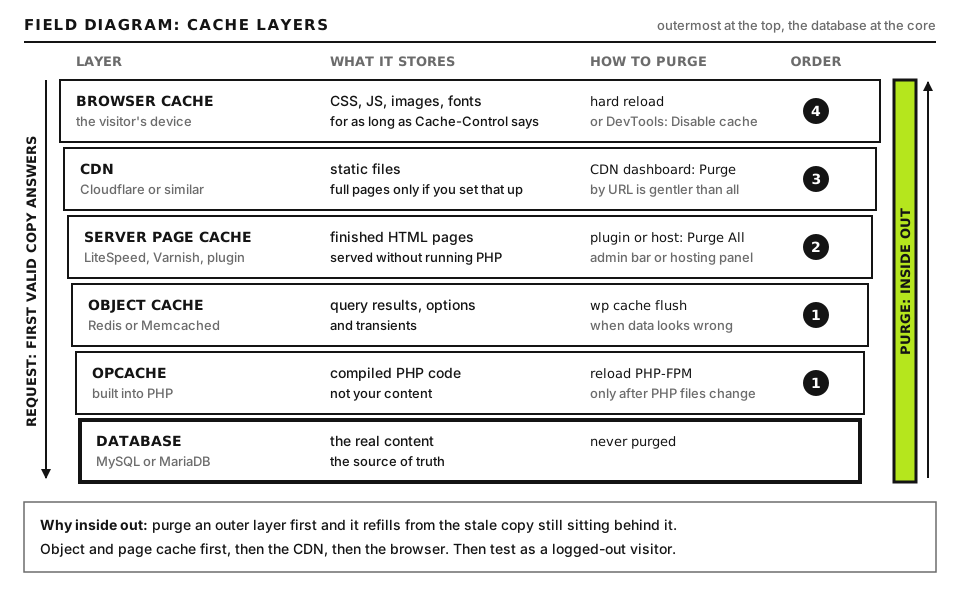
If the original problem lasted even a minute, a page cache may have stored the blank response and kept serving it. You fix the bug, but visitors still see white.
A cached blank page survives the fix until every layer is purged, inside out. Open full size
Confirm it by requesting a version of the page the cache will not have:
Run this on your own computer. Replace RANDOM_STRING with any letters you have not used before. Many caches treat a new query string as a new page and pass it to PHP. If this returns a normal size but the plain URL is still blank, the cache is serving a stale copy.
Clear caches from the inside out: the caching plugin (and wp cache flush for the object cache), the server cache in your hosting panel, then the CDN (in Cloudflare: Caching, Configuration, Purge Everything).
Opcache serving old code
PHP’s opcache keeps compiled copies of PHP files in memory. If your host sets opcache.validate_timestamps to 0, or sets a long opcache.revalidate_freq, PHP can keep running the broken version of a file after you have fixed it, or keep running a file you deleted. The tell is a log error pointing at a line that no longer contains that code.
WP-CLI runs in its own PHP process, so wp eval 'opcache_reset();' clears the command-line cache only, not the cache used by your web server. To clear the web opcache, restart PHP from your hosting panel (often a button such as Restart PHP), or ask your host to reload PHP-FPM.
Step 7: Bisect plugins with WP-CLI
If the log points at no file, or at a plugin you cannot remove blindly, find the guilty plugin by halving the list. It is faster than one at a time once you have more than about ten plugins.
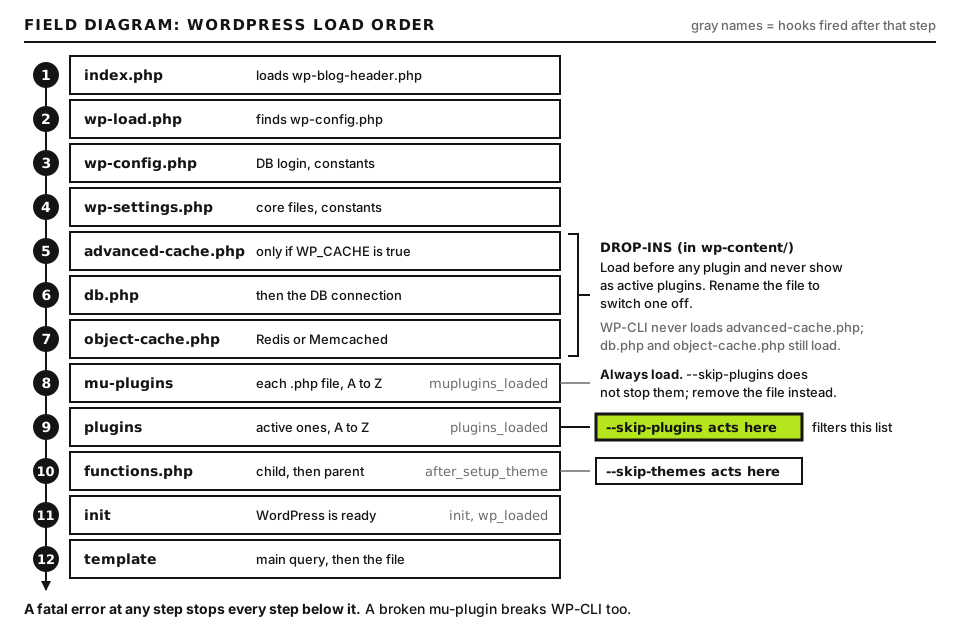
What --skip-plugins and --skip-themes actually skip. Open full size
Run these over SSH in the site folder. The first saves the names of all active plugins to a file in your home folder, so you can restore the exact set later. --field=name prints just the folder names, one per line. The second deactivates every plugin; deactivating does not delete settings. In the third, replace HALF_COUNT with half the number of lines in the file (run wc -l ~/active-plugins.txt to count). sed -n '1,Np' prints lines 1 to N.
Reload after each round. Blank means the culprit is in the half you just enabled; working means it is in the other half. Keep halving until one plugin remains, then restore everything except that one:
Replace BAD_PLUGIN_SLUG with the folder name of the plugin you identified. Good output is a line of “Plugin activated” messages and a final “Success”.
Two traps: must-use plugins in wp-content/mu-plugins and drop-ins such as advanced-cache.php and object-cache.php load even with every plugin off. Move or rename them temporarily to test.
Advanced: blank pages with no error at all
Sometimes the status is 200, files are intact, logs are clean, and the page is still empty. Code ran to the end and chose to output nothing, often through an output buffer or an early exit wrapped in a condition you did not expect.
Output buffer callbacks that return nothing
Minify, lazy-load and optimization plugins often wrap the whole page in ob_start() with a callback that rewrites the HTML. If that callback hits an error, for example a regular expression that exceeds PCRE’s backtrack limit on a very large page, PHP’s preg_replace returns null and the plugin may hand back an empty string. The page is built and then thrown away. The clue is a blank page only on your longest pages, or only after enabling a “combine” or “minify HTML” option. Turn off HTML minification first.
Trace the request with Query Monitor or a log marker
If wp-admin works, install Query Monitor and load the blank page while logged in; it shows PHP errors, hooks and the template file used. Otherwise add temporary markers such as error_log( 'reached header' ); at points in the theme, load the page, and see which markers reach the log. The last one shows where execution stopped. Remove them afterward.
When to contact your host
Open a ticket when your logs are empty, the PHP-FPM log shows segfaults, or you cannot restart PHP or clear the server cache. Send:
The exact URLs that are blank, and whether wp-admin works.
The time you reproduced it, in UTC, so they can match log lines.
Any log lines you found, copied as text.
What changed last: an update, an upload, a PHP version switch, a new snippet.
What you already tried: default theme, plugins off, caches purged, PHP restarted.
Ask for the PHP-FPM and web server error logs for that timestamp. If you would rather work through it with a checklist, the Emergency Room walks you through triage, and our diagnostic tools can check status codes and headers from outside your network.
Did this fix it?
Still stuck? Start again from what you can see in the Emergency Room.
Still stuck?
Print a free one-page checklist to keep, or open the Emergency Room if the symptom does not match.
PHP hit a fatal error, almost always in a plugin, theme or after a PHP upgrade. Use the recovery mode email, read the exact error in the log, and switch off the culprit without losing anything.
Move a WordPress site to a newer PHP version without downtime: check support dates, scan plugins for incompatible code, test on staging, switch per site and roll back fast.
After a WooCommerce update the store looks wrong, orders vanish from a report or an extension errors. Finish the database update, fix template overrides and HPOS, or roll back.