How to Fix “There Has Been a Critical Error on This Website” (WordPress)
PHP hit a fatal error, almost always in a plugin, theme or after a PHP upgrade. Use the recovery mode email, read the exact error in the log, and switch off the culprit without losing anything.
Visitors see a short message: There has been a critical error on this website. Logged-in administrators may see There has been a critical error on this website. Please check your site admin email inbox for instructions.
This is WordPress’s fatal error handler, added in WordPress 5.2. When PHP hits an error it cannot recover from (a fatal error), WordPress catches it and shows this screen instead of a blank white page. The message itself tells you nothing about the cause, but the cause is written down in a log, and it is almost always one of three things: a plugin, a theme, or a change of PHP version. Your content in the database is not affected.
Before you start
Back up the site files and database if your host offers a quick backup or snapshot. You will be renaming folders and editing wp-config.php, and you want a way back.
Access you need: the inbox of the WordPress admin email address, SFTP or your hosting panel’s file manager, and ideally SSH with WP-CLI.
Where to run the commands. Commands in gray boxes that start with wp run in an SSH terminal, from the site’s folder (the one that contains wp-config.php). Most hosting panels offer a terminal or SSH access; on some hosts the command is wp-cli instead of wp. Lines that start with define( are not commands: you add them to wp-config.php in the file manager or over SFTP. Words in CAPITALS are placeholders for your own values, explained next to each one.
Think about what changed. A plugin or theme update, a PHP version change in your hosting panel, a code snippet added to functions.php, or automatic updates overnight. The most recent change is the best first suspect.
Step 1: Use the recovery mode email
When the fatal error happens, WordPress emails the site admin address (Settings, General) with a subject like [Your Site] Your Site is Experiencing a Technical Issue. The email names the plugin or theme that caused the error, includes the error details, and contains a special login link.
That link logs you in to recovery mode. In recovery mode, WordPress pauses the broken plugin or theme for your session only, so you can reach the dashboard. Visitors still see the error. From the Plugins screen you can then deactivate, update or delete the culprit, and the site comes back for everyone.
Things to know about this email:
The link expires, by default after one day, and WordPress rate-limits these emails, so you will not get a fresh one with every error.
It depends on your site being able to send email. Many sites cannot send mail reliably, so check spam folders, and if nothing arrived, skip to Step 2.
You can send these emails to a different address by adding define( 'RECOVERY_MODE_EMAIL', 'you@example.com' ); to wp-config.php, with you@example.com replaced by an inbox you check. It only helps with the next error, not one that already happened.
Step 2: Read the actual error
Guessing wastes time. The log tells you the exact file and line. There are two places to look.
The server’s PHP error log
Most hosts log PHP errors even when WordPress debugging is off. Look in your hosting panel for “Error log”, “PHP errors” or “Logs”. On some hosts it is a file named error_log in the site folder. The location varies by host.
The WordPress debug log
If you cannot find a server log, turn on WordPress’s own logging. Edit wp-config.php and replace any existing WP_DEBUG line with this, above the line that says “That’s all, stop editing”:
Copy these four lines as they are; there is nothing to replace. This writes errors to wp-content/debug.log without showing them to visitors. Load the broken page once, then open the log. On a production site, keep WP_DEBUG_DISPLAY false: displayed errors reveal file paths and can break pages further.
When you are done, set WP_DEBUG back to false and delete debug.log. By default that file sits in a publicly reachable folder, and it can grow large. You can also give WP_DEBUG_LOG a file path outside the web root instead of true.
Step 3: Decode the fatal error
Find the line that starts with PHP Fatal error. The path in it tells you who is responsible: wp-content/plugins/PLUGIN_SLUG/ is a plugin (PLUGIN_SLUG is that plugin’s folder name, which you need in Step 4), wp-content/themes/THEME_SLUG/ is a theme, wp-content/mu-plugins/ is a must-use plugin. Common examples:
Allowed memory size of 134217728 bytes exhausted (tried to allocate 20480 bytes): PHP ran out of memory. Raise the WordPress limit by adding define( 'WP_MEMORY_LIMIT', '256M' ); to wp-config.php (256M means 256 megabytes). WordPress can only raise it as far as your host’s PHP memory_limit allows. If the error keeps coming back at higher limits, a plugin is leaking memory or looping, and more memory only delays the crash.
Uncaught Error: Call to undefined function create_function() (or each()): code written for old PHP. Both functions were removed in PHP 8.0. This appears right after a PHP upgrade. Update the plugin or theme, or replace it if it is abandoned.
Uncaught TypeError or ArgumentCountError: PHP 8 is stricter about types and argument counts than PHP 7. Again, usually old code meeting a newer PHP version.
Cannot redeclare function_name() or Cannot declare class X, because the name is already in use: the same code is loaded twice. Typical causes are two copies of one plugin (for example an old folder renamed plugin-old but still active), or two plugins bundling the same library.
syntax error, unexpected ... in functions.php: a snippet was pasted with a mistake. Fix or remove it over SFTP.
Maximum execution time of 30 seconds exceeded: a request ran too long, often an import, backup or a slow external API call.
Step 4: Switch off the plugin that is failing
You cannot reach the Plugins screen, so disable the plugin from outside WordPress.
With SFTP or the file manager: go to wp-content/plugins/ and rename the plugin’s folder by adding .off to the end, so PLUGIN_SLUG becomes PLUGIN_SLUG.off. PLUGIN_SLUG is the folder name that appears after wp-content/plugins/ in the fatal error line. WordPress cannot find it and deactivates it. Reload the site. If you do not know which plugin is responsible, rename the whole plugins folder to plugins.off, confirm the site loads, rename it back, then rename plugins one by one until the error returns.
With WP-CLI: the normal commands would load the broken plugin and crash too, so tell WP-CLI to skip plugins and themes while it works:
The first command lists every plugin; its name column shows each plugin’s slug (its folder name) and status shows which are active. In the second, replace PLUGIN_SLUG with the slug of the plugin named in the error. --skip-plugins --skip-themes loads WordPress without running any plugin or theme code, so the broken one cannot crash the command. Success looks like Success: Deactivated 1 of 1 plugins.
Once the site is back, update the plugin, check its support forum for the same error, or replace it. Do not simply reactivate it and hope.
If you see “Plugin could not be activated because it triggered a fatal error.”
This message appears on the Plugins screen right after you click Activate, and it is the good version of this problem: WordPress loaded the plugin on its own, saw it crash, and left it switched off, so the rest of the site keeps working. Under the message WordPress usually shows a small box with the PHP error it caught, such as PHP Fatal error: Uncaught Error: Call to undefined function ... or Cannot redeclare .... If the box is empty, the same line is in the PHP error log or wp-content/debug.log (Step 2). The usual causes are a plugin that needs a newer or older PHP version than the site runs (compare the plugin’s “Requires PHP” with the PHP version under Tools, Site Health, Info, Server), a second copy of the same plugin or a plugin bundling the same library (Cannot redeclare or Cannot declare class), a zip that uploaded only partly (delete the plugin and install a fresh download), a missing PHP extension the plugin names in the error, or the memory limit (see our guide to memory exhausted and maximum execution time errors). Do not keep clicking Activate on a live site: fix the cause the error names, or test the plugin on a staging copy first.
Step 5: Switch to a default theme
If the error path points to wp-content/themes/, switch to a default WordPress theme:
twentytwentyfive is the slug of the Twenty Twenty-Five default theme, so type it as shown. Any default theme listed in the name column of wp theme list works too. If no default theme is installed, install one first with wp theme install twentytwentyfive --skip-plugins --skip-themes. Without WP-CLI, rename the active theme’s folder; WordPress falls back to a default theme if one is installed. If you use a child theme, check the child’s functions.php first, since that is where custom snippets live.
Step 6: Check mu-plugins and drop-ins
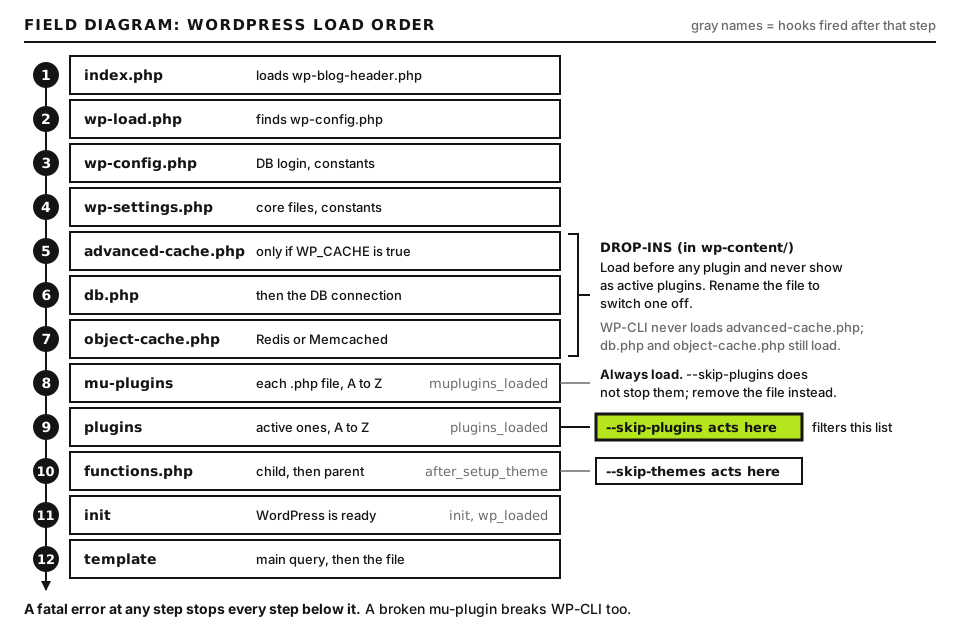
Two kinds of files load before or alongside normal plugins and are easy to forget:
Drop-ins and mu-plugins load before normal plugins, and --skip-plugins does not stop mu-plugins. Open full size
Must-use plugins in wp-content/mu-plugins/ load automatically and do not appear in the normal plugin list. Hosts, security tools and developers put code here. WP-CLI’s --skip-plugins does not skip them, so move a suspect file out of the folder to test.
Drop-ins are special files directly in wp-content/. The two most common are object-cache.php (connects WordPress to Redis or Memcached) and advanced-cache.php (page caching, loaded when WP_CACHE is true). A drop-in left behind after you remove a caching plugin, or an object cache whose Redis server is gone, can take the whole site down. Rename the file to test, for example object-cache.php.off.
Step 7: Check the PHP version
If the error started right after you or your host changed PHP versions, compare the plugin’s “Requires PHP” and “Tested up to” details with your new version. As a temporary fix, switch back to the previous PHP version in your hosting panel to get the site up, then update the incompatible plugin or theme and move forward again. Do not stay on an old PHP version long term: versions that no longer receive security fixes are a risk of their own.
Still stuck: when to contact your host
Contact your host if the log shows nothing, if the error persists with all plugins disabled and a default theme active, or if the fatal error points to WordPress core files in wp-includes or wp-admin (which suggests damaged or incomplete core files). Send them:
The exact time the error started, with your time zone.
The full PHP Fatal error line from the log, including the file path and line number.
The PHP version the site runs, and whether it changed recently.
What you already tried: plugins disabled, theme switched, drop-ins renamed, memory limit raised.
Did this fix it?
Still stuck? Start again from what you can see in the Emergency Room.
Still stuck?
Print a free one-page checklist to keep, or open the Emergency Room if the symptom does not match.
After a WooCommerce update the store looks wrong, orders vanish from a report or an extension errors. Finish the database update, fix template overrides and HPOS, or roll back.
Trouble after updating to WordPress 7.1? See what 7.1 changed, which bugs 7.1.1 fixed, how to prove the update is to blame, and how to roll back safely if you must.
Problems after WordPress 7.0? Learn what changed (PHP 7.4 minimum, iframed editor, pattern locking), which bugs 7.0.1 fixed, and how to roll back or report a bug.