Gmail, Yahoo or Outlook Rejecting Your Email? How to Meet the Sender Requirements
Mail to Gmail, Yahoo or Outlook bouncing or landing in junk? Learn the current sender requirements, how to read Postmaster Tools and SNDS, and how to fix PTR and HELO.
Your mail reaches most people, but Gmail bounces it with “550-5.7.26 This mail is unauthenticated” or “421-4.7.0 This message is suspicious due to the very low reputation of the sending domain”, Outlook.com returns “550 5.7.515 Access denied, sending domain does not meet the required authentication level”, or messages to Yahoo simply sit in the spam folder. The three largest consumer mailbox providers now publish explicit rules for senders, and they enforce them automatically.
This guide covers what those rules are, how to prove you meet them, and the less obvious infrastructure checks (reverse DNS, HELO names, warm-up) that cause rejections even when authentication passes. Setting up SPF, DKIM and DMARC records from scratch is covered in FG-06; reading bounce codes in general is covered in FG-43.
What is happening
Gmail and Yahoo announced joint sender requirements that took effect in February 2024, with enforcement stepped up over the following months. Google has since said it is tightening enforcement further, including more rejections of non-compliant mail from November 2025. Microsoft followed with requirements for high-volume senders to its consumer services (Outlook.com, Hotmail.com and Live.com) effective 5 May 2025.
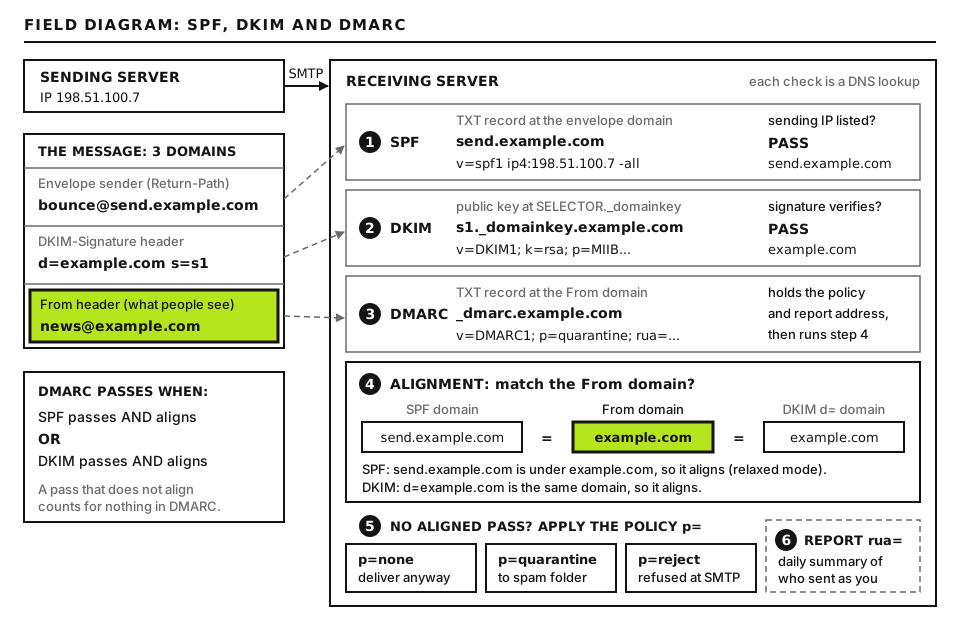
What a receiving server checks before it accepts your mail. Open full size
The rules split senders into two groups. Every sender must meet a baseline. “Bulk” senders must meet extra conditions. Google defines a bulk sender as one that sends close to 5,000 or more messages to personal Gmail accounts in a single day, and its guidance says that once you reach that level, you are treated as a bulk sender from then on. Microsoft’s threshold is more than 5,000 messages a day to its consumer domains. Yahoo publishes matching rules without a fixed number.
Requirement
Gmail: all senders
Gmail and Yahoo: bulk senders
Outlook.com: high-volume senders
SPF or DKIM
At least one passing
Both SPF and DKIM
SPF must pass and DKIM must pass
DMARC record
Recommended
Required, p=none is accepted
Required, at least p=none, aligned with SPF or DKIM
Required on marketing and subscribed mail, honored within 2 days
Functional unsubscribe link recommended
The spam rate thresholds are Google’s published figures, measured as the share of your mail that Gmail users mark as spam, shown in Postmaster Tools. The “within 2 days” unsubscribe window is shared by Google and Yahoo. Microsoft’s page also lists recommended practices, such as a valid sender address that can receive replies and regular removal of invalid addresses. Requirements change: check each provider’s current sender guidelines before you rely on any row.
Before you start
You need access to your DNS provider, the control panel or admin console of whatever sends your mail, and a personal Gmail address and Outlook.com address you can test with. For PTR changes you need access to whoever controls your server’s IP address, which is usually your host or cloud provider, not your domain registrar.
DNS checks use dig on your own computer (built in on macOS and Linux; on Windows use WSL or Resolve-DnsName in PowerShell). Mail server checks run over SSH on the server. Nothing here deletes data, but write down any DNS record before you change it.
Step 1: Read the rejection and the authentication results
Gmail and Microsoft rejections name the problem. Match yours:
5.7.26 (Gmail) or 5.7.509 (Outlook.com): authentication or DMARC failed.
5.7.515 (Outlook.com): you count as high volume and SPF, DKIM or DMARC is missing or failing.
5.7.25 (Gmail): reverse DNS problem; go to Step 3.
421 4.7.0 or 550 5.7.1 mentioning reputation or unsolicited mail (Gmail), or S3150 (Outlook.com): reputation problem; go to Steps 4 to 6.
421 4.7.28 (Gmail): sudden volume spike; slow down and check for compromise.
Then send a normal message to your Gmail test address, open it, choose “Show original”, and read the summary at the top and the Authentication-Results header. You want to see:
This is what to look for in the header, not a command. example.com stands for your domain. smtp.mailfrom is the envelope sender domain SPF checked; header.i or header.d is the domain that signed DKIM; header.from is the visible From domain, and p=NONE is simply how Gmail prints the DMARC policy you publish. For bulk senders both SPF and DKIM must pass, and DMARC must pass, which means at least one of the passing domains must match the From domain (a subdomain such as bounce.example.com counts under the default relaxed alignment). Bad output: dkim=pass only for a provider domain such as header.i=@mailer.example.net, which passes DKIM but does nothing for your DMARC. Fix it by setting up custom DKIM for your domain in that provider.
Step 2: Add one-click unsubscribe to marketing mail
Bulk senders must include one-click unsubscribe, as defined in RFC 8058, on marketing and subscribed messages. Password resets, receipts and other transactional messages do not need it. Most email marketing platforms add it automatically when your domain is set up properly, so first check whether your messages already contain these headers (Show original, then search for “List-Unsubscribe”):
These are message headers your sending system adds, not something you type. SUBSCRIBER_TOKEN stands for an opaque value that identifies the subscriber; it must not be guessable. The first header lists ways to unsubscribe: the HTTPS URL is required for one-click and the mailto is an optional fallback. The second header tells the mailbox provider it can unsubscribe the user by sending a single HTTPS POST to that URL with the body List-Unsubscribe=One-Click, without opening a web page. Under RFC 8058 both headers must be covered by your DKIM signature. Good result: Gmail shows an “Unsubscribe” link next to your sender name. Bad result: no link, which can mean the headers are missing, not signed, or Gmail does not yet trust your sending reputation enough to display it.
If you built your own sending code, the URL must accept a POST, unsubscribe without a login or confirmation page, and take effect within two days. Keep a visible unsubscribe link in the body as well.
Step 3: Fix reverse DNS and forward confirmation
Every sender to Gmail needs valid forward and reverse DNS. This mainly bites people who run their own mail server or send directly from a web server or VPS.
Reverse DNS is a PTR record that maps your IP back to a hostname. Forward-confirmed reverse DNS (FCrDNS) means that hostname also resolves forward to the same IP. Check both on your computer:
SENDING_IP is the IP that connects to the receiver, found in the Received: headers of a delivered message. MAIL_HOSTNAME is the hostname the first command returns. -x performs a reverse lookup. Good output: the first command returns something like mail.example.com., and the second returns exactly SENDING_IP. Bad output: no PTR at all, a generic name such as ip-198-51-100-7.provider.example (works for FCrDNS but looks residential to filters), or a hostname that resolves to a different IP.
PTR records are set by whoever owns the IP block, so you change them in your host or cloud provider’s control panel, or by opening a ticket, not at your domain’s DNS. Set the PTR to a name you control, such as mail.example.com, and create a matching A record.
The IPv6 trap
Servers with IPv6 often deliver to Gmail over IPv6 automatically, because Gmail’s MX hosts have IPv6 addresses. If your IPv4 PTR is perfect but your IPv6 address has none, those deliveries fail with 550-5.7.25. Check by running the reverse lookup on your server’s IPv6 address. Either add a PTR for the IPv6 address, or tell your MTA to send over IPv4 only: in Postfix set inet_protocols = ipv4 in /etc/postfix/main.cf and reload; in Exim set disable_ipv6 = true in the main configuration. Prefer adding the PTR where you can.
Step 4: Check your HELO name
When your server connects, it introduces itself with an EHLO or HELO command and a hostname. Receivers check that name. It should be a fully qualified domain name that resolves in DNS, ideally the same name as your PTR. Names like localhost, localhost.localdomain, a bare word such as server1, or a name that does not resolve are classic spam signals.
You can see what your server announces in the Received: header the receiver added, which typically reads from HELO_NAME (PTR_NAME [SENDING_IP]). On a Postfix server you can check the setting over SSH:
postconf myhostname smtp_helo_name
No placeholders. myhostname is the server’s mail hostname and smtp_helo_name is what it sends in EHLO; by default the second equals the first. Good output is a real hostname such as myhostname = mail.example.com. Bad output is a default like localhost.localdomain or a name with no DNS record. Change it in /etc/postfix/main.cf, then run postfix reload. On Exim the equivalent is primary_hostname (or helo_data on the remote SMTP transport); on cPanel servers the server hostname is used and is set in WHM.
Step 5: Monitor with Google Postmaster Tools
Google Postmaster Tools shows how Gmail sees your domain. Sign in with a Google account, add your sending domain, and verify it with the TXT record Google gives you.
Compliance status. Google refreshed Postmaster Tools in 2025; the current version includes a view showing whether your domain meets each sender requirement (authentication, alignment, PTR, TLS, one-click unsubscribe, spam rate). This is the quickest way to see which rule you are failing.
Spam rate. The share of mail users reported as spam each day. Stay well below 0.10%. Spikes usually follow a specific campaign, a new list import or a compromised sender.
Authentication and encryption. Depending on the version you see, charts or compliance rows for SPF, DKIM, DMARC and TLS. Google has retired some older dashboards, so labels may differ.
Data only appears once you send a meaningful daily volume to personal Gmail accounts, so a small business sending a few dozen messages a day may see empty graphs. That is normal, not an error.
Step 6: Monitor Microsoft with SNDS and JMRP
Microsoft’s equivalents are IP based, not domain based, and are mostly useful if you control your sending IPs.
SNDS (Smart Network Data Services) shows, per IP, how much mail Outlook.com received from you, the share filtered as spam (shown as green, yellow or red), complaint rates and spam trap hits.
JMRP (Junk Mail Reporting Program) is a feedback loop: when an Outlook.com user marks your message as junk, Microsoft sends you a report so you can remove that person.
Microsoft has been moving these services to a new portal, so follow the links from Microsoft’s current sender support pages rather than old bookmarks. If you see the S3150 block in a bounce, use the Outlook.com sender support (mitigation) form linked from the bounce, and include your IP, the exact bounce text and what you changed. For Microsoft 365 business recipients, a 5.7.606 banned-IP bounce uses a separate delist portal for Microsoft 365, also linked from the bounce.
Yahoo offers Sender Hub, which includes its complaint feedback loop. If Yahoo users are a significant part of your audience, enroll.
Advanced: warming up a new IP or domain
Mailbox providers decide how much to trust a sender based on history. A brand new IP or domain has none, and a sudden flood from it looks exactly like a spammer who just rented a server. Warm-up means building that history deliberately.
Authenticate before you send anything. SPF, DKIM, DMARC, PTR and HELO must all be correct from day one. Reputation built while failing authentication does not carry over.
Start with your most engaged recipients. People who opened or clicked recently are the least likely to complain and the most likely to interact, and positive engagement is what builds trust.
Increase volume gradually. Raise daily volume step by step over several weeks, watching bounce rates, deferrals and Postmaster Tools spam rate before each increase. If you see 421 deferrals or rising complaints, hold or reduce volume until they clear.
Keep the schedule consistent. Regular, predictable sending looks legitimate. Long silences followed by bursts look suspicious.
Separate streams. Send transactional mail (receipts, resets) and marketing mail from different subdomains or IPs, such as mail.example.com and news.example.com, so a marketing problem cannot block password resets.
If you send through a shared IP pool at a transactional or marketing provider, the IP is already warm, but your domain still has its own reputation. Ramp up a new domain the same way.
Moving providers? Do it gradually where you can, moving a portion of traffic first. Your domain reputation travels with you, but IP reputation does not.
When to contact your host
Open a ticket when you need a PTR record set or changed for your server’s IP, when you cannot change the HELO name on a managed mail server, or when Microsoft or Gmail rejections point to a shared IP you do not control. Include:
The full bounce, including the rejection code and text.
The UTC time of the failed message, and the sender and recipient addresses.
Your sending IP (IPv4 and IPv6 if used) and the results of the dig -x checks.
The PTR hostname you want, and confirmation that its A or AAAA record already points to the IP.
The Authentication-Results header from a test message to Gmail.
Any recent change: a new sending IP, a server move, a provider switch or a large campaign.
The diagnostic tools page lists header analyzers and DNS checkers. If transactional mail such as order confirmations is being rejected right now, start at the Emergency Room.
Did this fix it?
Still stuck? Start again from what you can see in the Emergency Room.
Still stuck?
Print a free one-page checklist to keep, or open the Emergency Room if the symptom does not match.
Web records point at the web host and mail records point at the mail provider. Mail breaks when a new host replaces the zone, or its server still thinks it handles your mail.
The form says “sent” or spins forever, but no entry or email ever shows up. Find out whether the submission or the notification failed, then fix that half.