How to Fix “500 Internal Server Error” on a WordPress Site
The web server hit something it could not handle and gave up. Read the error log, test .htaccess, then check permissions, the PHP handler and security rules, in that order.
Your browser shows 500 Internal Server Error, sometimes with the extra line The server encountered an internal error or misconfiguration and was unable to complete your request. Chrome may show HTTP ERROR 500 with “This page isn’t working”. On LiteSpeed servers the page is a plain gray box, and on some hosts it is a branded error page.
A 500 is the web server saying “something went wrong and I will not tell the visitor what”. The real reason is always written to a log. On WordPress sites the usual culprits are a broken .htaccess file, wrong file permissions or ownership, a PHP version or handler that no longer exists, a PHP fatal error, or a security module refusing the request. It often appears right after a migration, a PHP upgrade or a plugin that writes to .htaccess.
What is happening
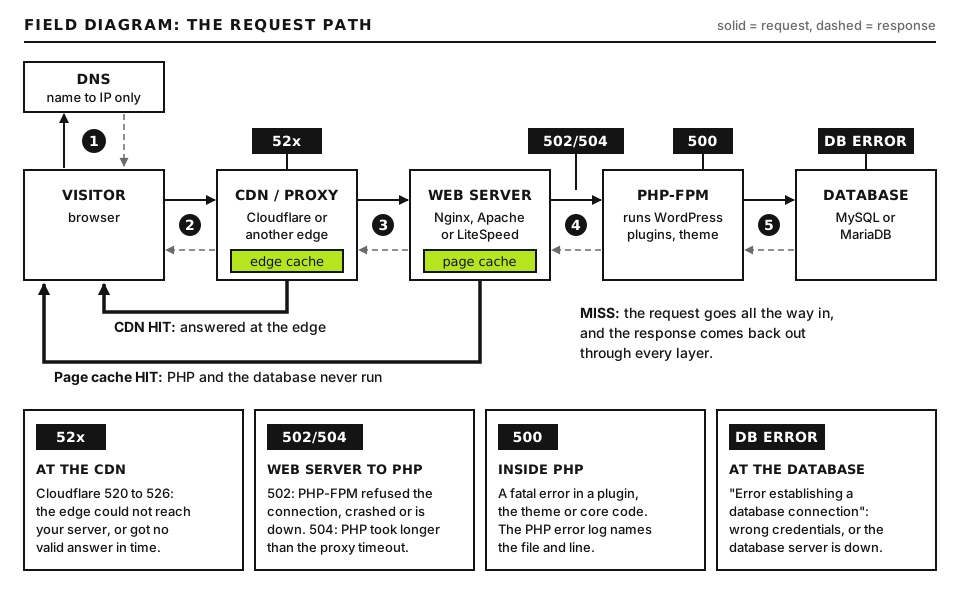
When a request arrives, the web server (Apache, LiteSpeed or Nginx) first reads its configuration. On Apache and LiteSpeed that includes every .htaccess file in the folders on the path to the file requested. It then hands .php requests to PHP, usually through PHP-FPM (a pool of PHP worker processes) or a CGI wrapper that runs PHP as your account user. If any of those layers fails in a way the server cannot describe with a more specific code, you get a 500.
Where each error code comes from on the way to WordPress. Open full size
mod_security or a similar web application firewall rule
ModSecurity: Access denied with a rule id
If you see “There has been a critical error on this website” instead, WordPress caught a PHP fatal itself; that has its own guide.
Before you start
Access you need: your hosting control panel, SFTP or the panel file manager, and ideally SSH. Many fixes here are simple file renames you can do in a file manager.
Back up before you edit. Download .htaccess and wp-config.php before changing them. If your host offers a snapshot, take one.
How to run commands: server commands run in an SSH terminal. Log in, then change into the site folder, the one that contains wp-config.php (often public_html or htdocs). WP-CLI is called wp on most servers and wp-cli on some managed platforms; use whichever your host provides. Commands such as curl run on your own computer: macOS and Linux have it built in, and on Windows 10 and 11 you can use curl.exe in PowerShell or install WSL.
Note the time you reproduce the error, so you can match it to a log line.
Step 1: Read the error log first
Guessing wastes time. The log line tells you which of the causes below you have.
Where the logs live
Server
Common error log path
Apache on Debian or Ubuntu
/var/log/apache2/error.log or a per-site file in the same folder
Apache on RHEL, AlmaLinux, Rocky
/var/log/httpd/error_log
cPanel servers
/usr/local/apache/logs/error_log (root only); users see recent entries under Metrics, Errors
Nginx
/var/log/nginx/error.log
LiteSpeed
/usr/local/lsws/logs/error.log
PHP errors
an error_log file in the site folder, a path set by the panel, or wp-content/debug.log if WordPress debug logging is on
On shared hosting, look in your panel for “Errors”, “Logs” or “Metrics” instead.
Reproduce and watch the log live
tail -f /PATH/TO/ERROR_LOG
Run this on the server over SSH. Replace /PATH/TO/ERROR_LOG with one of the paths above or the path your host gives you. The -f flag keeps the file open and prints new lines as they are written. Reload the broken page in your browser and watch for a new line. Press Ctrl+C to stop. Good output is a fresh line with your IP and the URL you loaded; if nothing appears, you are watching the wrong log, or the failure is happening at a proxy in front of the server.
How to read an Apache error line
[Sat Nov 07 14:02:11.481902 2026] [core:alert] [pid 31877] [client 203.0.113.10:51234] /home/SITE_USER/public_html/.htaccess: Invalid command 'php_value', perhaps misspelled or defined by a module not included in the server configuration
This is example output, not a command. Read it left to right: the timestamp, then [module:level] (here the core module at alert level), the process ID, the client IP and port, and finally the message. SITE_USER stands for your account user name. The file path tells you exactly which .htaccess broke, and the message tells you which line. This one says the server does not understand php_value, which is Step 2.
Step 2: Test and fix .htaccess
This is the most common cause on Apache and LiteSpeed hosting. Nginx does not read .htaccess at all, so if your server is pure Nginx, skip to Step 3.
Confirm it by renaming the file
mv .htaccess .htaccess-off
Run this over SSH in the site folder, or rename the file in your file manager (turn on “show hidden files” to see it). mv renames without deleting. Reload the home page. If it now loads, .htaccess is the cause. Inner pages may 404 for now because the WordPress rewrite rules are gone; that is expected. If the 500 remains, rename it back with mv .htaccess-off .htaccess and move on, but also check for .htaccess files in wp-admin, wp-content and wp-content/uploads, since a bad one there breaks only those paths.
Common broken directives
php_value and php_flag: these only work when PHP runs as an Apache module (mod_php). Almost every modern host runs PHP-FPM or LSAPI, where these lines cause a 500. Move the settings to a .user.ini file or your panel’s PHP settings instead, for example memory_limit = 256M in .user.ini.
Directives for modules that are not loaded:Header needs mod_headers and ExpiresActive needs mod_expires. Well written snippets wrap them in <IfModule mod_headers.c> so they fail safely.
Options lines the host does not allow: the log says Options not allowed here. Remove Options +FollowSymLinks or replace it with Options +SymLinksIfOwnerMatch if the host permits that.
Old Apache 2.2 syntax:Order deny,allow and Deny from all need mod_access_compat on Apache 2.4. The 2.4 equivalent is Require all denied.
Rewrite loops:Request exceeded the limit of 10 internal redirects due to probable configuration error means a rewrite rule keeps matching its own result. Look for custom rules above the WordPress block.
Typos and stray characters: a missing closing </IfModule>, a smart quote pasted from a document, or a plugin that wrote half a block before crashing.
Restore the default WordPress block
For a standard single site installed at the domain root, the block WordPress writes is:
This is the content of a file you create: a new .htaccess in the site folder. There are no placeholders for a root install. If WordPress lives in a subfolder such as /blog/, change RewriteBase / to RewriteBase /blog/ and the last line to RewriteRule . /blog/index.php [L]. The HTTP_AUTHORIZATION line passes login headers through for the REST API and application passwords. Good result: the site and inner pages load. If the site loads with this file but not with your old one, add your old custom sections back one at a time, reloading after each, until the 500 returns. That section is the culprit. Multisite networks use a different block; copy it from Network Admin, Settings, Network Setup.
You can also regenerate the block by visiting Settings, Permalinks in wp-admin and clicking Save Changes without changing anything, provided the file is writable.
Step 3: Check file permissions and ownership
Many hosts run PHP as your account user through suEXEC, suPHP, PHP-FPM pools per user or LSAPI. For safety, these wrappers refuse to run scripts that anyone other than the owner can write to, and PHP cannot read files owned by a different user. Both produce a 500.
Confirm it
Log clues: Permission denied, Primary script unknown (Nginx with PHP-FPM, often a permission or path problem), SoftException in Application.cpp followed by is writeable by group or is writeable by others, or UID of script is smaller than min_uid. These usually appear after a migration done as root, an archive extracted with odd permissions, or a “chmod 777 to make it work” fix.
ls -la
stat -c '%U:%G %a %n' wp-config.php index.php wp-content
Run these over SSH in the site folder. ls -la lists every file including hidden ones, with permissions, owner and group. stat -c prints a custom format: %U owner, %G group, %a octal permissions, %n file name. Good output shows your account user as owner on every file, folders at 755 and files at 644 (wp-config.php may be 640 or 600). Bad output shows root or another user as owner, or 777 and 666 anywhere.
Run these over SSH in the site folder as your account user. find . walks everything below the current folder; -type d matches folders and -type f matches files; -exec chmod 755 {} \; runs chmod on each match. There are no placeholders. Good output is silence. “Operation not permitted” lines mean those files belong to another user, which is an ownership problem you cannot fix without root.
This needs root on the server, so on shared or managed hosting open a ticket and ask the host to run it. SITE_USER and SITE_GROUP are your account user and group (shown in the panel, or as the owner of your home folder); /PATH/TO/SITE_FOLDER is the folder holding wp-config.php. -R applies the change recursively. Good result: ls -la now shows only your user as owner.
Step 4: Check the PHP handler and version
Old hosts and panels often add a handler line to .htaccess that tells Apache which PHP binary to use. After a migration or a PHP upgrade, that line can point at a version the server no longer has.
Run this over SSH in the site folder. -n prints line numbers, -i ignores case and -E allows the alternation with |. Good output is either nothing, or one block marked by your current panel (cPanel writes a block that starts # php -- BEGIN cPanel-generated handler, do not edit). Bad output is an old line such as AddHandler application/x-httpd-php56 .php or a handler for a version your panel no longer lists.
Fix it
Delete stale handler lines from .htaccess, then set the PHP version again in your panel (for example MultiPHP Manager or a “PHP version” setting) so it writes a fresh, correct block.
Pick a PHP version your plugins and theme support. WordPress publishes its recommended PHP version on wordpress.org/about/requirements.
After switching versions, check that required extensions such as mysqli, curl, gd or imagick, mbstring, xml and zip are enabled for the new version. A missing mysqli shows up as a fatal.
Step 5: Look for a PHP fatal that the server shows as a 500
When display_errors is off, which it should be on a live site, a PHP fatal error can reach the visitor as a bare 500. WordPress normally catches fatals and shows its “critical error” page, but not when the fatal happens very early, inside a must-use plugin, in wp-config.php itself, or when PHP runs out of memory hard.
Run these over SSH in the site folder. -n 50 prints the last 50 lines. If your host stores PHP errors elsewhere, use that path. Good evidence is a line like PHP Fatal error: Uncaught Error: Call to undefined function ... in /home/SITE_USER/public_html/wp-content/plugins/PLUGIN_SLUG/FILE.php, where PLUGIN_SLUG is the plugin folder name. If the files are missing or empty, turn on logging:
These lines go in wp-config.php, a file you edit, above the line that says /* That's all, stop editing! */. They write errors to wp-content/debug.log without showing them to visitors. Reload the page, read the log, then set WP_DEBUG back to false when you are done.
Run this over SSH in the site folder. PLUGIN_SLUG is the folder name under wp-content/plugins named in the fatal line. --skip-plugins and --skip-themes stop WP-CLI from loading the broken code while it runs. Good output: Success: Deactivated 1 of 1 plugins. Without SSH, rename the plugin folder in the file manager to deactivate it. The full fatal error workflow, including memory limits and recovery mode, is in our critical error guide.
Step 6: Rule out mod_security and other firewall rules
mod_security is a web application firewall many hosts run in front of PHP. Most blocks return a 403, but hosts can configure it to return 406, 500 or another code, and some panels show a generic 500 page.
Confirm it
Signs: the 500 only happens on certain actions (saving a post with code in it, submitting a form, using the page builder, a REST API call), it hits only some visitors, or it started after the host updated its rule set. In the Apache error log or the panel’s mod_security log you will see something like:
This is example log output. RULE_ID is the numeric rule that fired, RULESET and RULE_FILE name the rule set, example.com is your domain and the uri shows the request that was blocked. The rule ID is the single most useful thing to send your host.
Fix it
Do not turn mod_security off for the whole site as a permanent fix. Ask the host to whitelist the specific rule ID for the specific URL.
If your panel has a mod_security toggle per domain, switching it off for two minutes is a valid test. Switch it back on afterward.
Step 7: Less common causes
Disk full or quota reached: PHP cannot write sessions or cache files. Check disk usage in the panel or with df -h and du -sh wp-content/* over SSH.
Too many processes: on CloudLinux hosting, hitting the process limit can show as 500 rather than 508. See our 503 and 508 guide.
Corrupted core files: a failed update can leave half written files. Run wp core verify-checksums over SSH in the site folder; it lists files that do not match the official release for your version. Fix them with wp core download --skip-content --force, which replaces core files and leaves wp-content alone.
Advanced: Isolating a 500 without guessing
Experienced developers can narrow a 500 down to a layer in a few minutes with requests that skip parts of the stack.
Run these on your computer. Replace example.com with your domain. -s hides progress, -o /dev/null throws away the body and -w '%{http_code}\n' prints only the status code (on Windows PowerShell use curl.exe and -o NUL). Read the results together:
Static file
PHP page
Likely layer
500
500
Server config or a root .htaccess error. PHP is not even involved.
200
500
PHP handler, permissions on PHP files, or a PHP fatal.
200
200 on wp-login, 500 on pages
A plugin or theme fatal on the front end, or a rule that only matches some URLs.
Bypass WordPress completely
Create a file named PROBE_NAME.php in the site folder (pick a random name) containing only <?php echo PHP_VERSION;. Load https://example.com/PROBE_NAME.php. If it prints a version number, PHP and the handler work, and the fault is inside WordPress. If it returns 500, the problem is below WordPress: handler, permissions or server config. Delete the file afterward.
Bisect a long .htaccess
Security and cache plugins can write hundreds of lines. Keep the WordPress block plus half of the custom rules and test. Whichever half triggers the 500 gets split again, until one line is left. Keep the backup so you can restore the rest.
When to contact your host
Open a ticket when the log points at something you cannot change (ownership, server config, mod_security rules, a missing PHP version), or when you cannot see any logs at all. Include:
The full URL that fails, and whether every page fails or only some.
The time you reproduced it, in UTC, to the minute.
The exact log line, or a note that you have no access to the error log.
What changed shortly before: migration, PHP version switch, plugin install, .htaccess edit.
What you already tested: .htaccess renamed, plugins deactivated, the probe file result.
For mod_security, the rule ID and the URI from the log line.
Our diagnostic tools page can check headers and status codes before you write the ticket. If a business-critical site is down right now, start at the Emergency Room.
Did this fix it?
Still stuck? Start again from what you can see in the Emergency Room.
Still stuck?
Print a free one-page checklist to keep, or open the Emergency Room if the symptom does not match.
WordPress loaded but could not log in to its database. Test the credentials in wp-config.php, then check the database server, connection limits, disk space and damaged tables, in that order.
Your WordPress site shows a completely blank page with no message. Find the hidden error in the logs, then rule out theme code, empty files, stale cache and opcache.
Stuck on “Briefly unavailable for scheduled maintenance” or seeing “Update failed” or “Could not create directory”? Clear the update, then fix locks, ownership, disk space and downloads.