How to Fix ERR_TOO_MANY_REDIRECTS (Redirect Loop) in WordPress
Two rules are sending visitors back and forth. Trace the loop with curl or the Network tab, then fix the WordPress URLs, the HTTPS setup behind your CDN, or the duplicate redirect rule causing it.
Chrome and Edge show This page isn’t working. example.com redirected you too many times. with the code ERR_TOO_MANY_REDIRECTS. Firefox says The page isn’t redirecting properly, and Safari says it cannot open the page because too many redirects occurred.
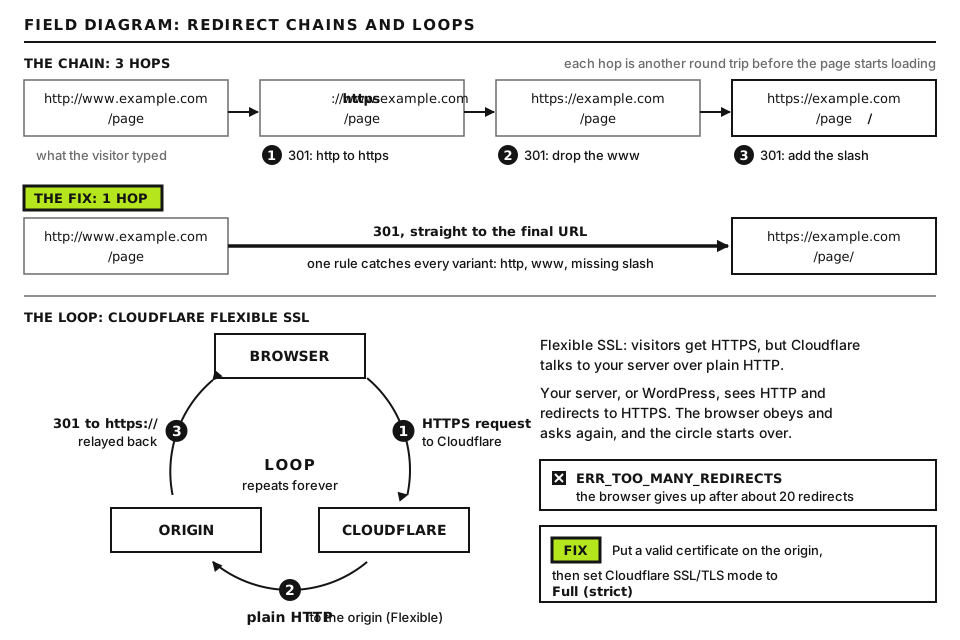
A redirect is the server telling the browser “this page lives at a different address, go there instead”. A redirect loop happens when two rules disagree: rule A sends the visitor from address 1 to address 2, and rule B sends them from address 2 back to address 1. The browser follows the chain until it hits its limit (about 20 hops in current browsers) and gives up. The fix is to find the two rules that disagree and remove one of them.
Before you start
Back upwp-config.php and .htaccess before editing them.
Access you need:SFTP or the hosting file manager, your CDN or DNS provider dashboard (for example Cloudflare) if you use one, and ideally SSH with WP-CLI. You cannot reach the WordPress dashboard while the loop is active, so plan to work from outside it.
Test without memory. Browsers cache permanent (301) redirects aggressively. Test every change in a fresh private window or with curl, or you will chase loops you already fixed.
Where to run the commands.curl commands can run on your own computer (macOS and Linux include curl; on Windows use WSL, the Windows Subsystem for Linux). Commands that start with wp run in an SSH terminal on the server, from the site’s folder (the one that contains wp-config.php); on some hosts the command is wp-cli instead of wp. Blocks starting with define(, if ( or RewriteEngine are not commands: they are lines you add to wp-config.php or .htaccess with the file manager or SFTP. Replace example.com everywhere with your own domain.
Step 1: Rule out your own browser
Open the site in a private window, or on your phone using mobile data. If it loads there but not in your normal browser, the loop lives in stored cookies or a cached redirect. Clear cookies and cached files for your domain only (in Chrome, click the icon to the left of the address bar, then the site settings or cookies option) and try again.
If the loop only happens when you log in, with wp-login.php sending you back to itself, the cause is usually a cookie that does not match the site address. Check for a COOKIE_DOMAIN line in wp-config.php that names the wrong domain, then continue with Step 3, because mismatched site URLs cause this too. A caching plugin that caches the login page can also cause it.
Step 2: Trace the loop so you can see it
Do not guess which rule is wrong. Watch the chain. With a terminal:
Replace example.com with your domain, and also try the http:// and www. versions of the address, since loops often start on only one of them. -s hides the progress bar, -I asks for headers only, and -L follows each redirect. The part after the | keeps only lines that start with HTTP or location, ignoring capitals (-i). Together, they request the page, follow every redirect and print only the status lines and Location headers. A healthy site shows one or two hops ending in HTTP/2 200. A loop shows the same two addresses repeating until curl stops with Maximum (50) redirects followed. (The -I flag sends a HEAD request; on the rare server that treats HEAD differently, use curl -sL -o /dev/null -D - https://example.com instead, which throws the page content away (-o /dev/null) and prints the headers of every hop (-D -).)
Without a terminal, open your browser’s developer tools (F12), go to the Network tab, check Preserve log so entries survive each redirect, and load the page. Click each 301 or 302 entry and read its Locationresponse header.
The pattern tells you where to look:
http and https alternating (https:// redirects to http://, which redirects back): an HTTPS problem, usually a proxy or CDN. Go to Step 4.
www and non-www alternating: one setting wants www, another removes it. Go to Steps 3 and 5.
A trailing slash added and removed (/page and /page/): a server rule and WordPress permalinks disagree. Go to Step 5.
A redirect to a completely different page or domain: a redirect plugin or rule, or possibly a hack. Go to Step 6.
Step 3: Check the WordPress Address and Site Address
WordPress stores two addresses: siteurl (WordPress Address, where the core files live) and home (Site Address, what visitors use). WordPress redirects requests to match home. If those values disagree with your server or CDN rules about https or www, you get a loop.
With WP-CLI:
wp option get siteurl
wp option get home
Type these as shown: siteurl and home are the names of the settings. Each prints one address. For most sites both should be identical and exactly the canonical address you want, such as https://example.com, with no trailing slash. To change them:
wp option update siteurl 'https://example.com'
wp option update home 'https://example.com'
Replace https://example.com with your canonical address, written exactly as you want visitors to see it (https or http, with or without www, no slash at the end). Keep the quote marks. Each command should answer with a Success line.
Without WP-CLI, you can override both in wp-config.php, above “That’s all, stop editing”:
Again, replace https://example.com with your canonical address in both lines. Constants in wp-config.php win over the database, and the fields in Settings, General turn gray while they exist. Check whether these lines are already there with an old or wrong value, which is common after a migration.
Step 4: Fix HTTPS behind a proxy or CDN
This is the most common loop of all. When a CDN or load balancer sits in front of your server, the visitor’s encrypted HTTPS connection ends at the CDN. The CDN then talks to your server separately, and how it does that matters.
Flexible SSL plus an HTTPS redirect on the origin loops forever. Use Full (strict). Open full size
Cloudflare “Flexible” SSL
In Cloudflare’s Flexible mode, visitors connect over HTTPS but Cloudflare connects to your server over plain HTTP. Your server or WordPress sees an HTTP request, redirects it to HTTPS, Cloudflare fetches it over HTTP again, and the loop begins. The fix is not to remove your HTTPS redirect. Install a valid certificate on your server (most hosts provide a free one) and set Cloudflare’s SSL/TLS encryption mode to Full (strict), so Cloudflare connects to your server over HTTPS and checks its certificate. Other CDNs have similar settings, often called origin protocol or origin SSL.
WordPress does not know the request was HTTPS
Behind some load balancers and reverse proxies, PHP never sees HTTPS, so WordPress’s is_ssl() check returns false and WordPress keeps redirecting to the https address. Proxies usually pass the original protocol in an X-Forwarded-Proto header. Add this to wp-config.php, above “That’s all, stop editing”:
Paste it exactly as shown; there is nothing to replace. It tells WordPress to treat a request as HTTPS whenever the proxy says the visitor used HTTPS. Only use this when your site really is behind a proxy that sets the header. Many managed hosts already handle it at the server level, in which case the snippet is unnecessary.
Server rules that cannot see HTTPS
The same problem hits .htaccess rules. This classic rule forces HTTPS:
RewriteEngine On
RewriteCond %{HTTPS} off
RewriteRule ^(.*)$ https://%{HTTP_HOST}/$1 [R=301,L]
These lines live in the .htaccess file in the site’s folder. %{HTTPS} and %{HTTP_HOST} are filled in by the server, so they are not placeholders. Behind a proxy that connects over HTTP, %{HTTPS} is always off, so this rule redirects every request forever. Either fix the proxy (Full strict, above) or test the forwarded header instead, with RewriteCond %{HTTP:X-Forwarded-Proto} !https. On Nginx, check that a return 301 https://... line sits only in the server block listening on port 80, never in the one for port 443.
Step 5: Remove duplicate www and HTTPS redirects
A redirect to your canonical address can be set in many places: the hosting panel, .htaccess (Apache and LiteSpeed), the Nginx config, a plugin, and CDN page or redirect rules. Two of them only need to disagree once. Open each place and write down what it does. Then:
Choose one canonical address, for example https://example.com without www.
Make sure siteurl and home use exactly that address.
Keep one server-level or CDN-level redirect to it, and remove the rest.
In .htaccess, leave the standard WordPress block between # BEGIN WordPress and # END WordPress alone, and look for older rules above it. Copies of the same rule pasted twice, or rules for an old domain, are common.
Step 6: Disable redirect and SSL plugins
Plugins that force HTTPS, manage redirects, or handle SEO redirects can conflict with server rules. Disable them without the dashboard by renaming the plugin folder in wp-content/plugins/ (add .off to the end, so PLUGIN_SLUG becomes PLUGIN_SLUG.off), or with WP-CLI:
PLUGIN_SLUG is the plugin’s folder name. To see them all, run wp plugin list --skip-plugins --skip-themes and read the name column. --skip-plugins --skip-themes stops WP-CLI from loading plugin and theme code, so a plugin that forces the redirect cannot interfere with the command.
If the loop stops, check that plugin’s settings against your server and CDN setup before turning it back on. Caching plugins and CDNs can also store a redirect, so purge every cache after each change.
If the chain sends visitors to a spam or unrelated domain, treat it as a possible hack and see the hacked site guide (FG-05).
When to contact your host
Contact your host if the loop continues with plugins disabled and correct site URLs, or if the redirect comes from server configuration you cannot see or edit. Send them:
The output of the curl -sIL command from Step 2, which shows the exact chain.
Whether you use a CDN or proxy, and its SSL mode.
The values of siteurl and home, and any WP_HOME or WP_SITEURL lines.
What you changed and when, including recent SSL, domain or hosting moves.
Did this fix it?
Still stuck? Start again from what you can see in the Emergency Room.
Still stuck?
Print a free one-page checklist to keep, or open the Emergency Room if the symptom does not match.
You enter the right password and land back on wp-login.php, or see “Cookies are blocked”. Trace the auth cookies, then fix URL, HTTPS proxy, cache and session problems.
HSTS removes the “proceed anyway” link, so any certificate fault locks visitors out. Learn how the header works, how to clear it for testing, and how to roll it out safely.
Your homepage loads but every other page says 404 Not Found. The server is not handing pretty URLs to WordPress. Fix .htaccess, mod_rewrite, Nginx try_files or the rewrite rules.